



Sign In #
The installation of Microsoft Office 365 for education requires prior activation of the service according to the instructions found here. Please be advised that Microsoft may require up to 1 hour to finalize the activation of your service before you are able to log in to portal.office.com.
You access the portal.office.com website and you enter your Microsoft Cloud identity as your email address. This identity follows the format: <username>@office365.auth.gr.

Once you press Tab on your keyboard or select Sign in, you will be automatically redirected to the University’s authentication page (login.auth). There, you must enter your institutional user account credentials to complete the login process.
Office 365 Installation #
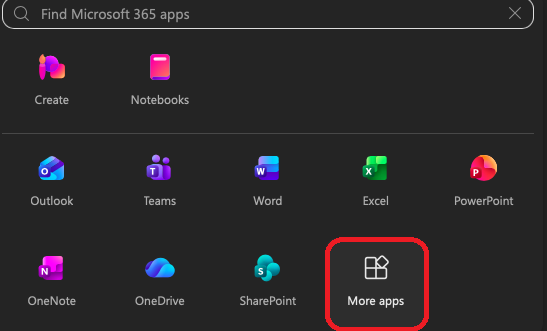
Once we sign in to the Office 365 portal, we select Apps and more from the left-hand menu. Next, we select More apps from the menu that opens. Alternatively, we can open the webpage https://portal.office.com/account/?ref=Harmony and proceed with the installation of Desktop Office.

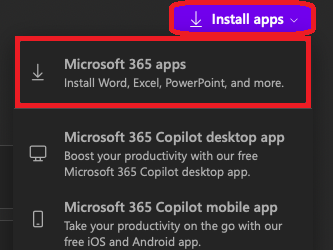
Then, we click the Install apps button located on the right side of the page, and finally, we select Microsoft 365 apps.
After a few seconds, we will be automatically redirected to a new page, where we select Install Office.

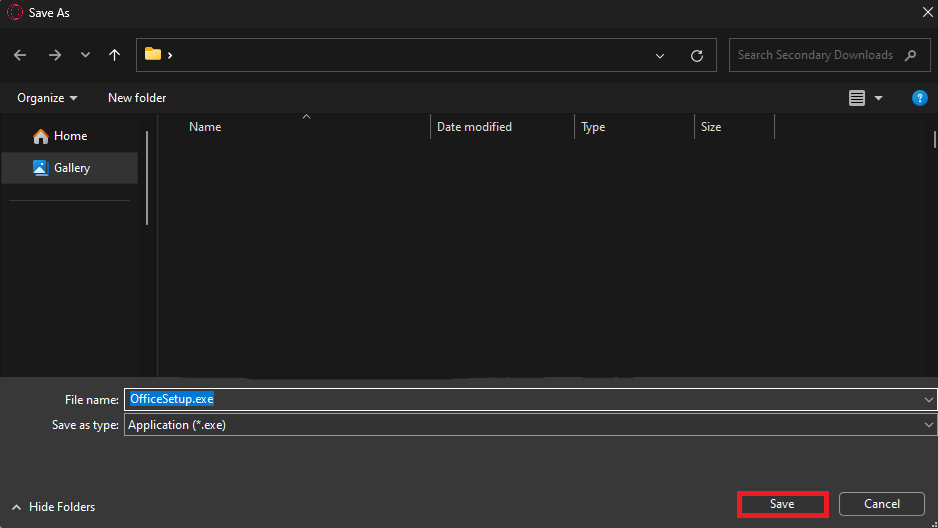
We choose the desired save location for the file and click Save.
Administrator Privileges #
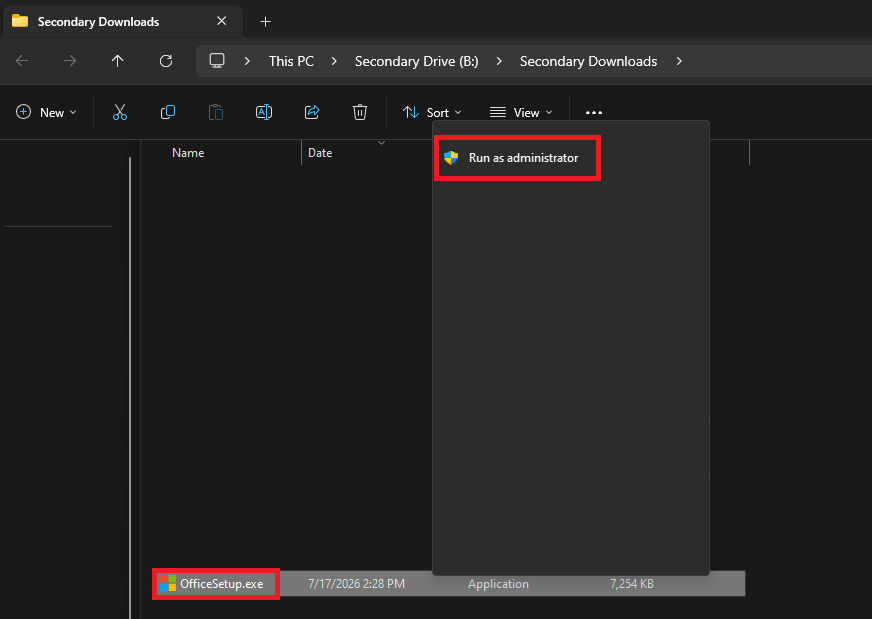
We right-click the downloaded file and execute it by selecting Run as administrator.
Sign In #
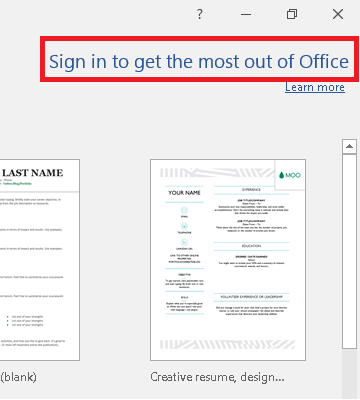
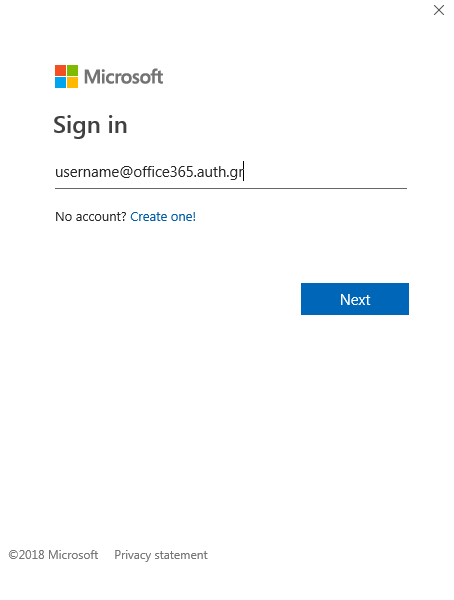
Once the installation is complete, launch any Office application (e.g., Word) to activate the suite. Click Sign in at the top right corner. Enter your Microsoft services email address using the format: <username>@office365.auth.gr and select Sign in. You will be automatically redirected to the University’s authentication page, on this page, press the Tab key four consecutive times to correctly position the cursor in the login field. This method is recommended as the page layout may not be fully visible due to technical constraints. Enter your institutional user account username and password. Upon successful authentication, the Office 365 product will be activated and ready for use.

Changing the Office 365 Display Language #
- Open any Office application, such as Word.
- Navigate to File > Options > Language.
- Under Set the Office Language Preferences, select your desired language. If your preferred language is not listed, you can download the corresponding language pack from here.