


Install Mozilla Thunderbird #
Install the Mozilla Thunderbird email client through the website http://www.mozilla.com/thunderbird.
Create a New Email Account #
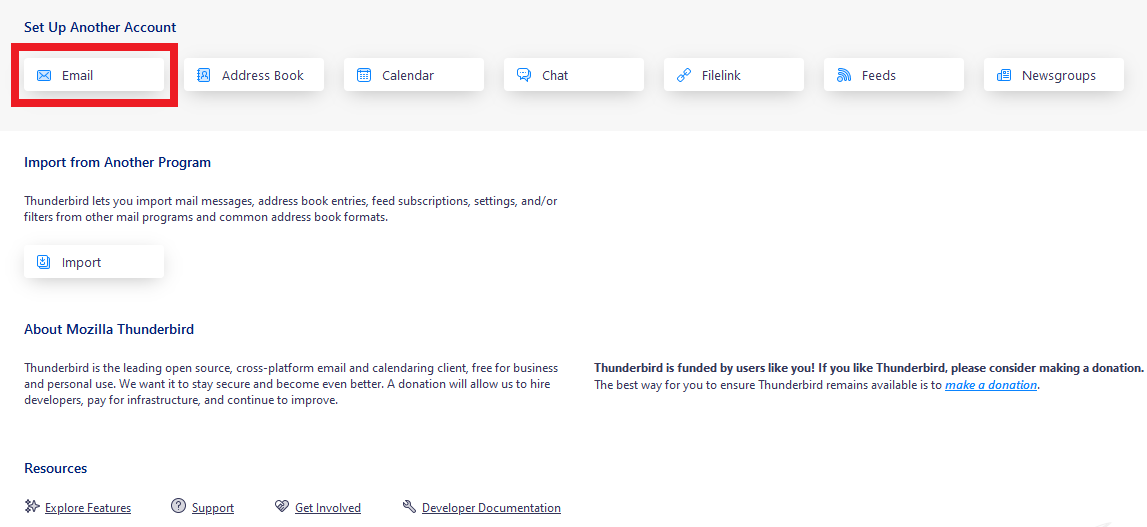
Double-click the Mozilla Thunderbird icon and select Create New Account → Email.
Enter Account Details #
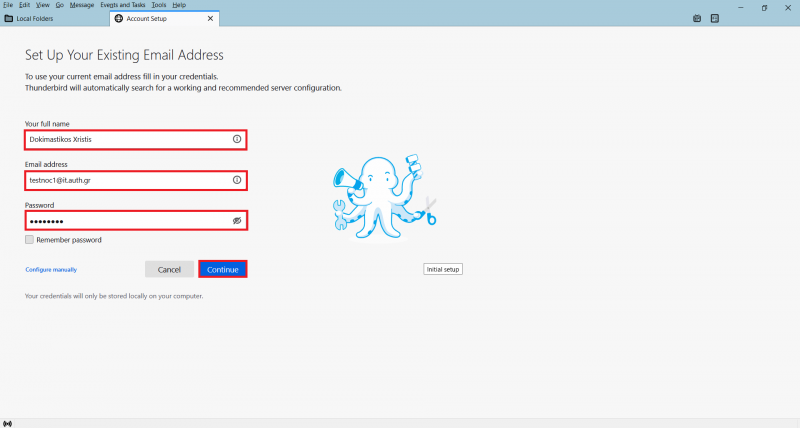
In the new window, enter your display name in the “Your full name” field, your institutional email in the “Email Address” field and your account password in the “Password” field. Then, select Continue.
Incoming Mail Settings #
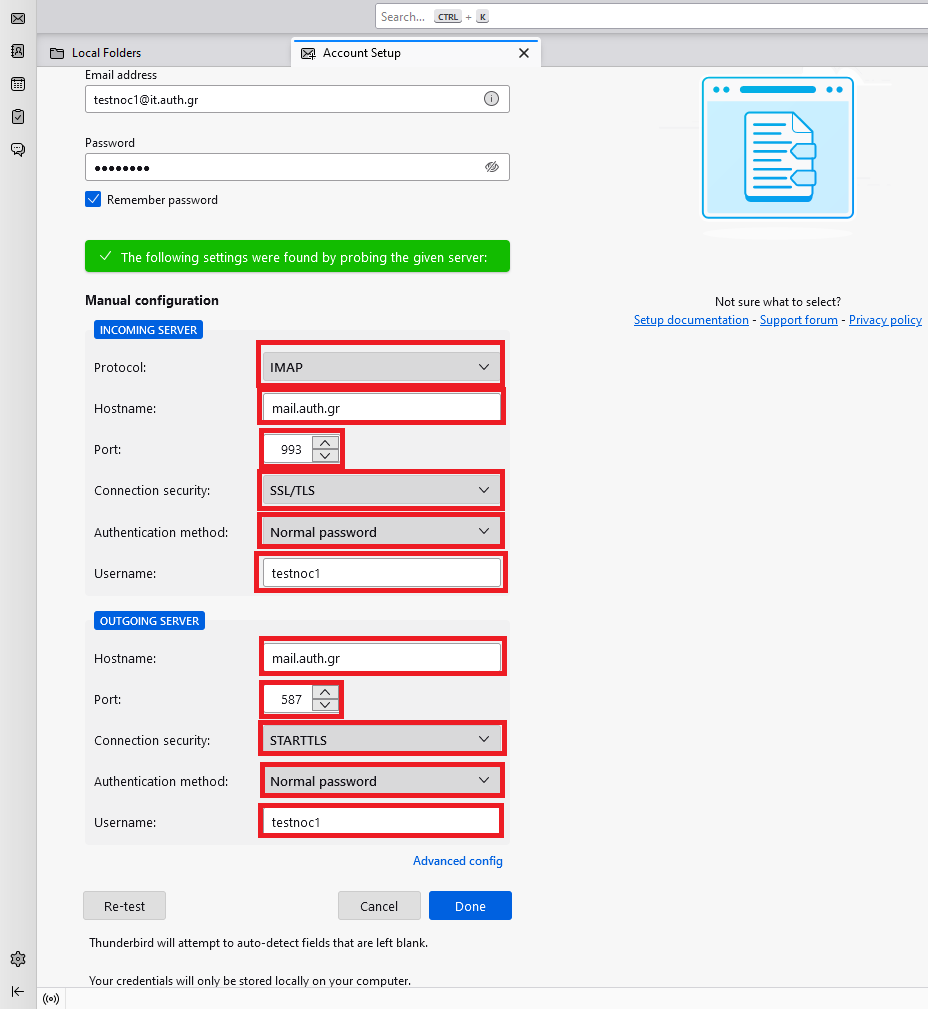
In the next window, under Incoming server enter the following:
Protocol: IMAP
Hostname: mail.auth.gr,
Port: 993,
Connection Security: SSL/TLS,
Authentication method: Normal Password,
Under Outgoing server enter the following:
Hostname: mail.auth.gr,
Port: 587,
Connection Security: STARTTLS,
Authentication method: Normal Password,
Finally, save the settings by clicking Done.
Complete the Setup Process #
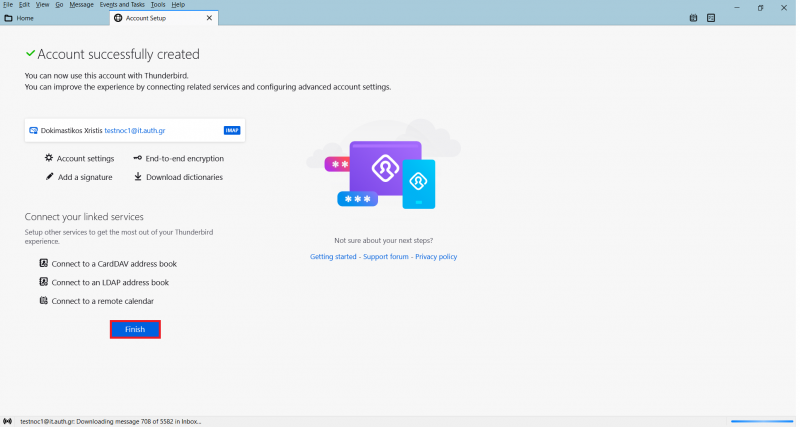
The setup process is complete once you select Finish.