


Before proceeding with the installation, you must obtain the software license key:
– If you have submitted an application in the past, go to the My Software page to view the new key. Click on SPSS macOS or on the + icon on the right to display the key.
– If you have not submitted an application in the past, go to Software License Application.
A license key is available only for the new version, SPSS 31. Therefore, the previous version, SPSS 29, must be uninstalled before installing the new version.
Download SPSS 31.
The instructions below refer to the previous version, SPSS 29, but the steps are equivalent for the new version.
Installation #
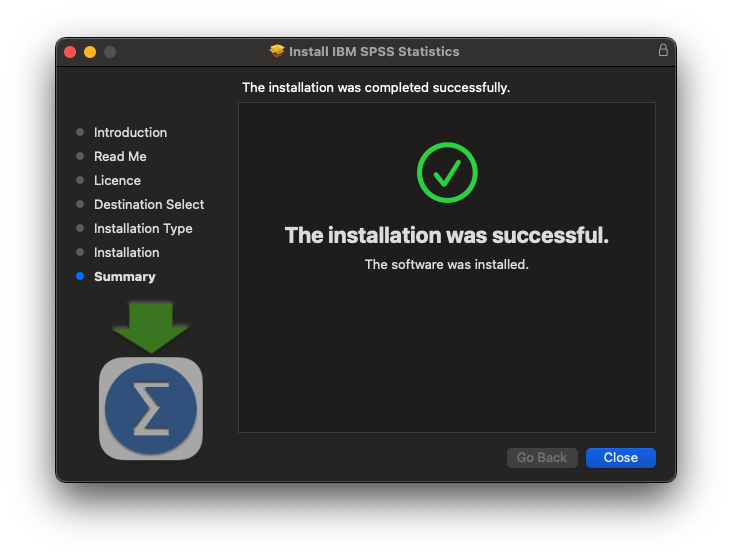
Launch the downloaded installer file. Follow the installation prompts by selecting Continue, Continue, Continue, and finally Agree to the terms.


Once the installation process is successfully completed, you can safely delete the installer file to free up disk space.

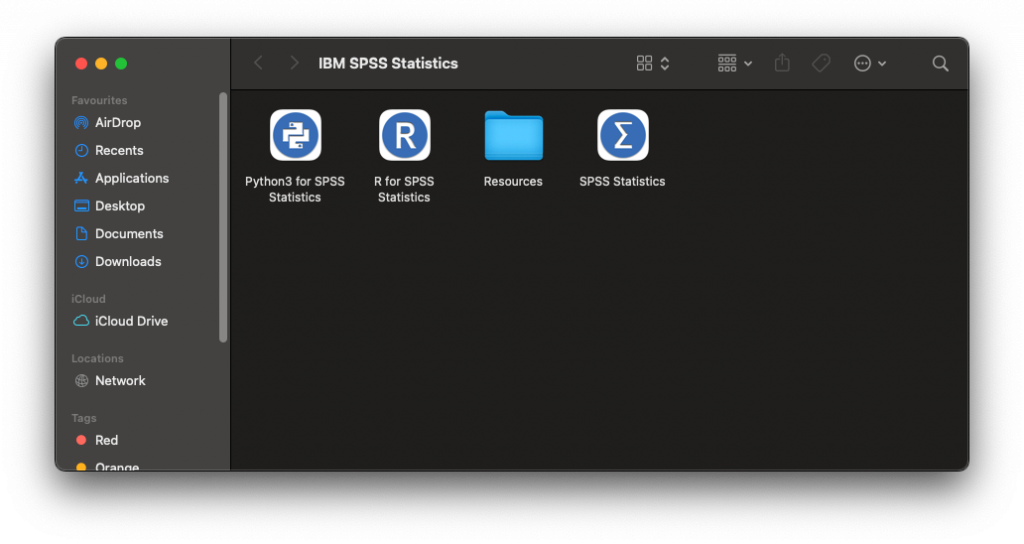
Upon the first execution of the application, a configuration window will appear. Select Launch License Wizard to proceed with the activation.

License Activation #
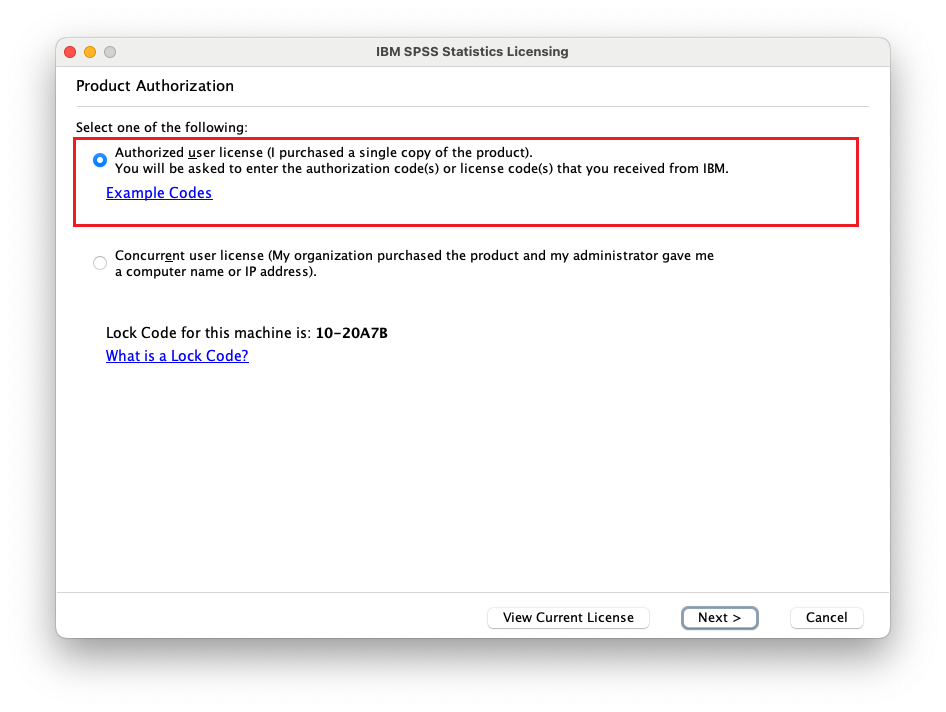
Within the License Wizard window, select the first option Authorized user license (I purchased a single copy of the product) and click Next>.
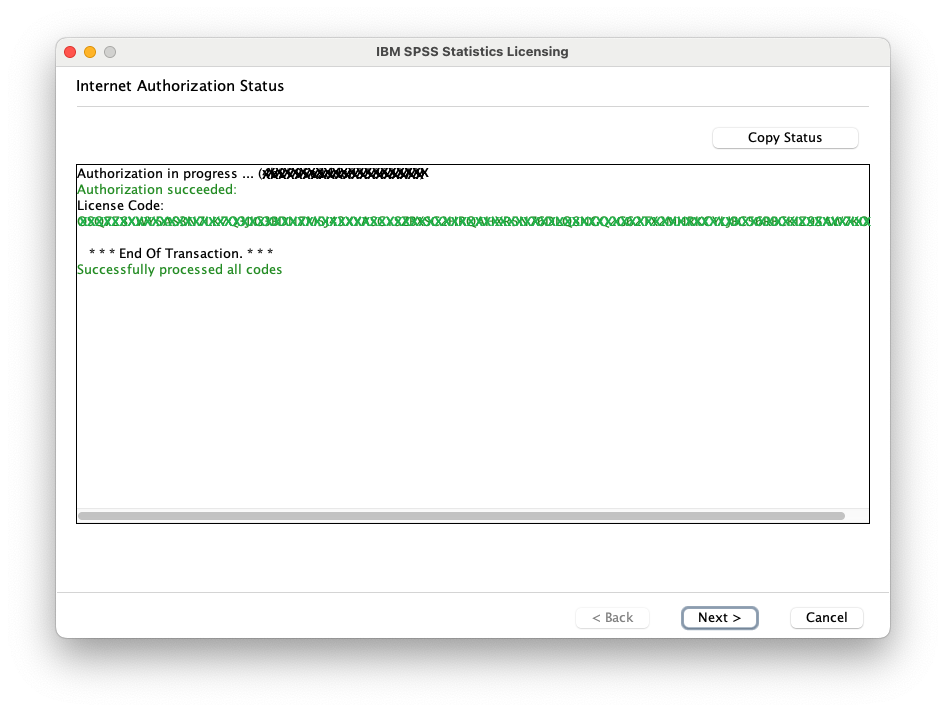
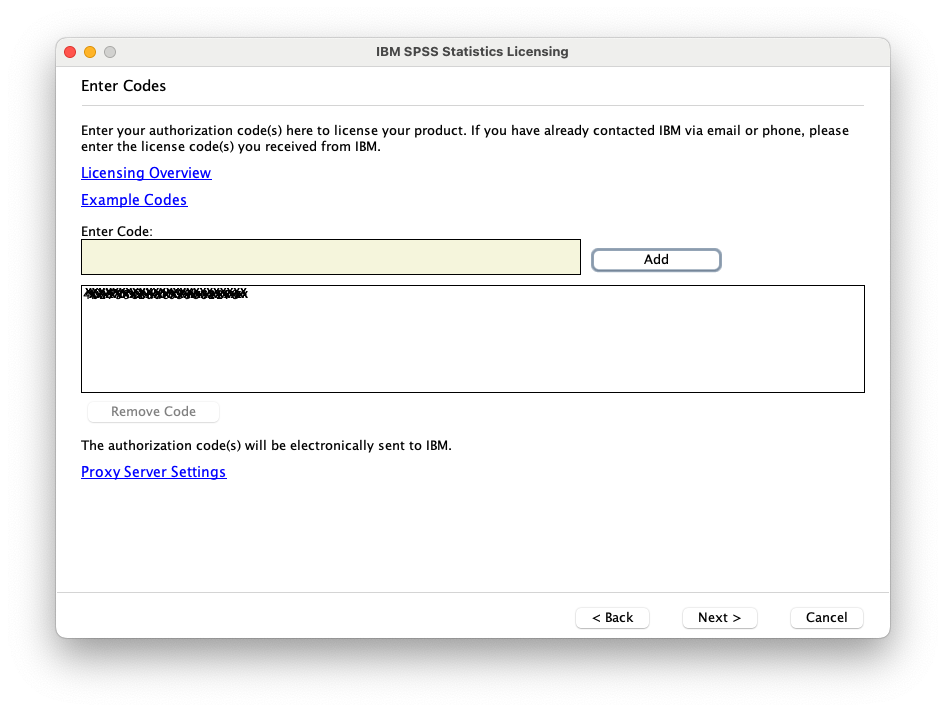
In the following window, enter the installation code obtained via your application, click Add, and then select Next.
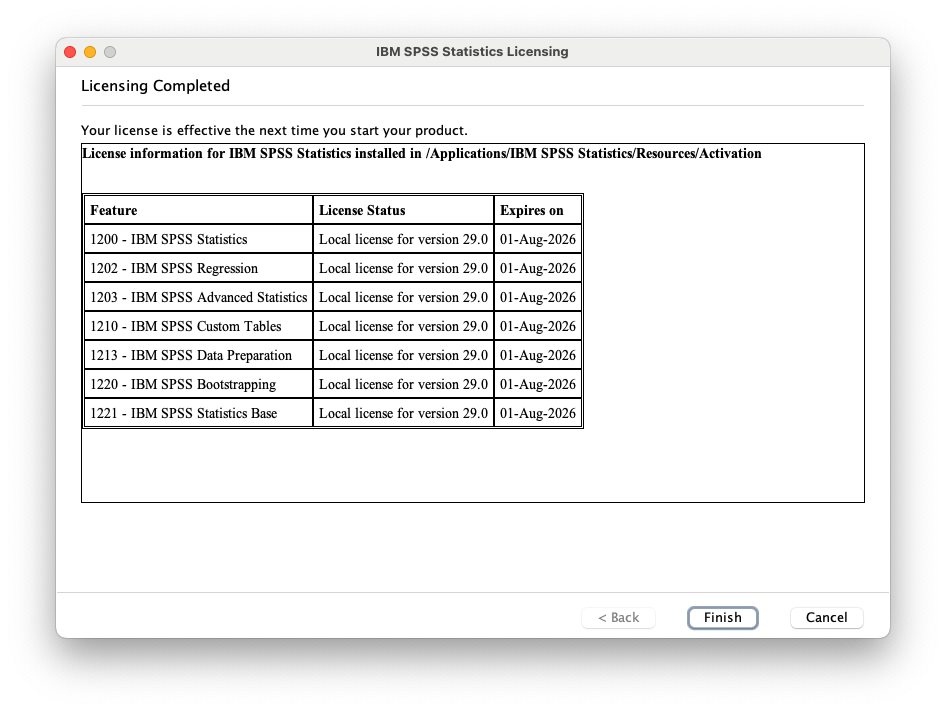
The subsequent window will confirm that the process has been successfully completed and will display the available licenses. Select Next and then Finish to launch SPSS