


The following guide refers to setting up your university email account (username@auth.gr) in the Outlook 2016 application from Office 365, which you can find here.
Opening Outlook #
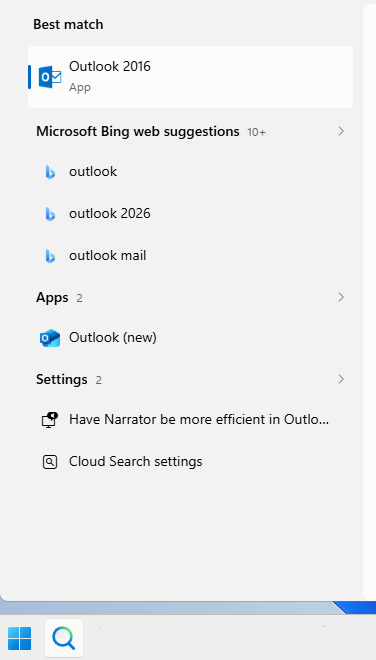
Search for the Outlook app and select it.
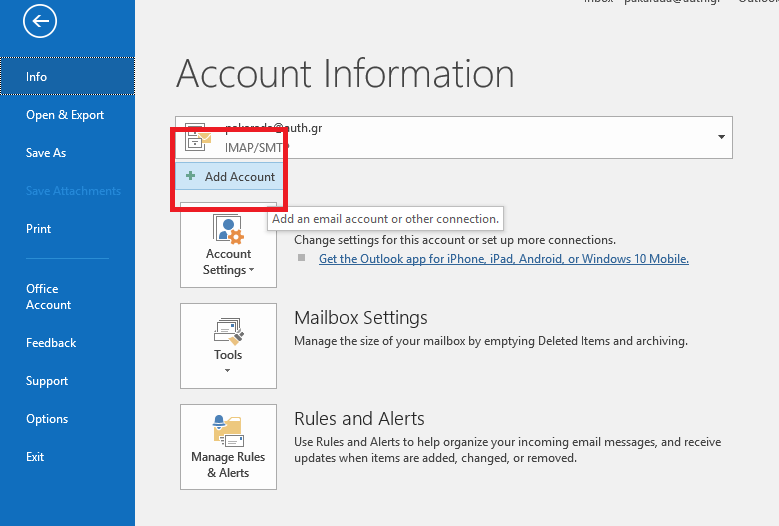
Once Outlook opens, select File in the top-left corner of the page.
If the following screen does not appear, proceed to the Select Manual Setup step below.

Add Account #
Click on Add Account.
Select Manual Setup #
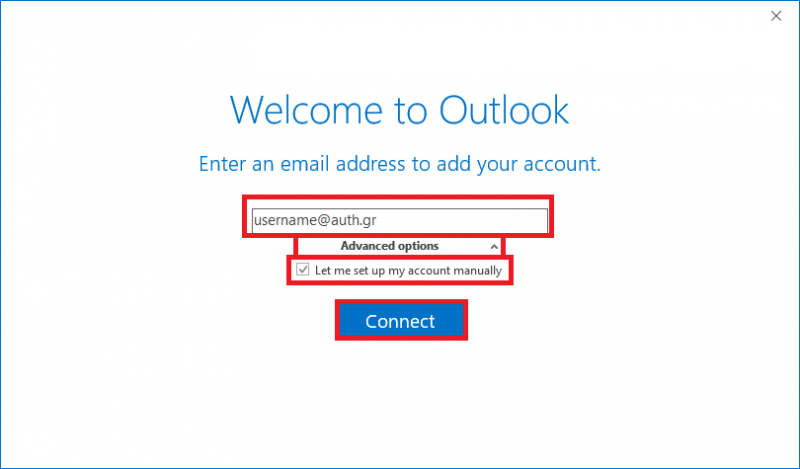
In the window that appears, enter the email of your institutional user account and select Let me set up my account manually under Advanced options. Then, click Connect.
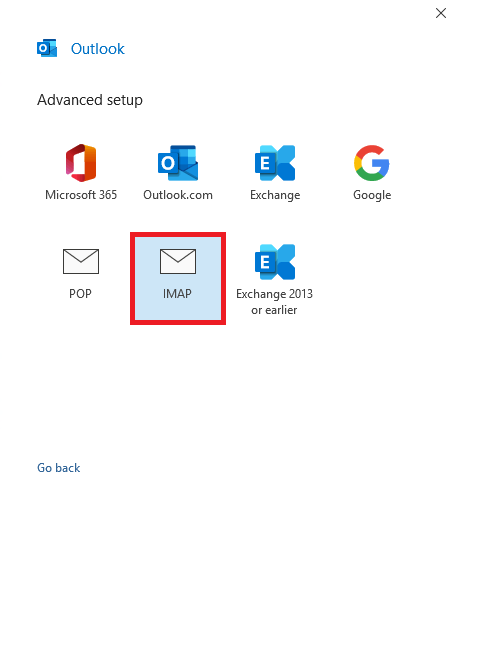
In the new window, select IMAP.
Enter Account Details #
Next, fill in the following details in order:
Α. Field Incoming mail:
Server: mail.auth.gr
Port: 993
Encryption method: SSL/TLS
B. Field Outgoing mail:
Server: mail.auth.gr
Port: 587
Encryption method: STARTTLS
Once you have filled in the details, click Next.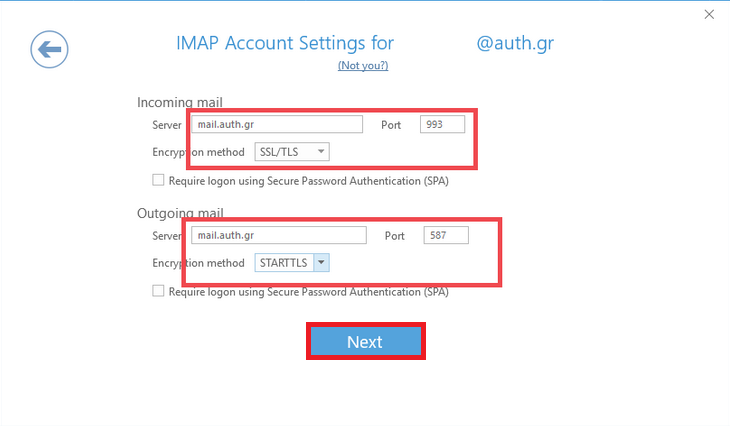
At his point, if you encounter a problem and the above window does not appear, you can follow the instructions on the website
https://it.auth.gr/faq/pos-apenergopoio-ton-aftomato-odigo-dimiourgias-logariasmou-se-outlook-gia-office-365/
If prompted, you enter your institutional user account password again.
For more information on disabling the automatic account setup wizard and configuring your email manually, you can visit the Microsoft website.
Enter the Password and Complete the Setup #
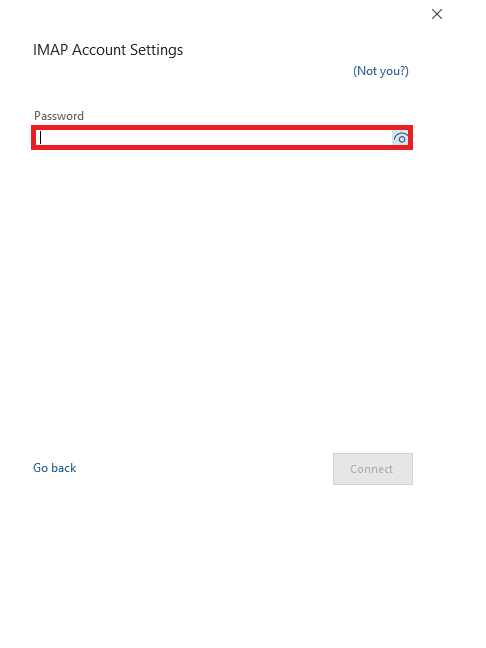
In the new window, enter your institutional user account password.
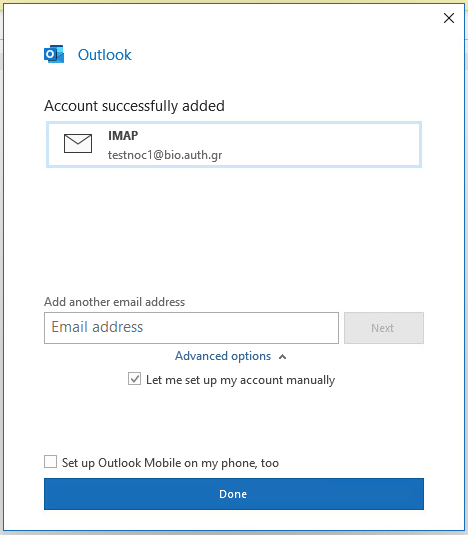
The configuration of your email account in Outlook has been completed.