


The following instructions are intended for students and faculty members. Guidelines for administrative staff can be found here.
Downloading Mathematica #
Navigate to the website https://www.wolfram.com/siteinfo/
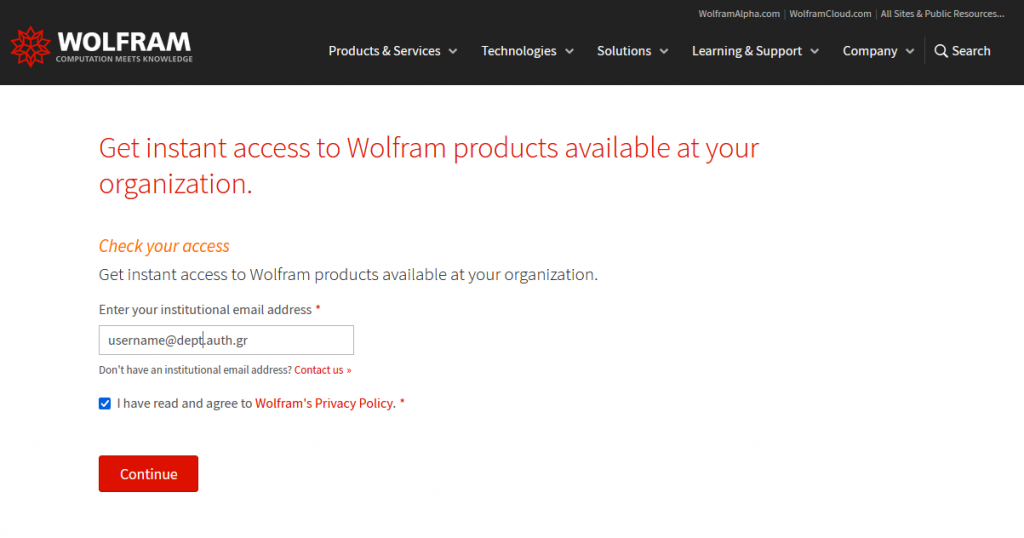
Enter your institutional email address, check the box “I have read and agree to Wolfram’s Privacy Policy,” and click Continue.
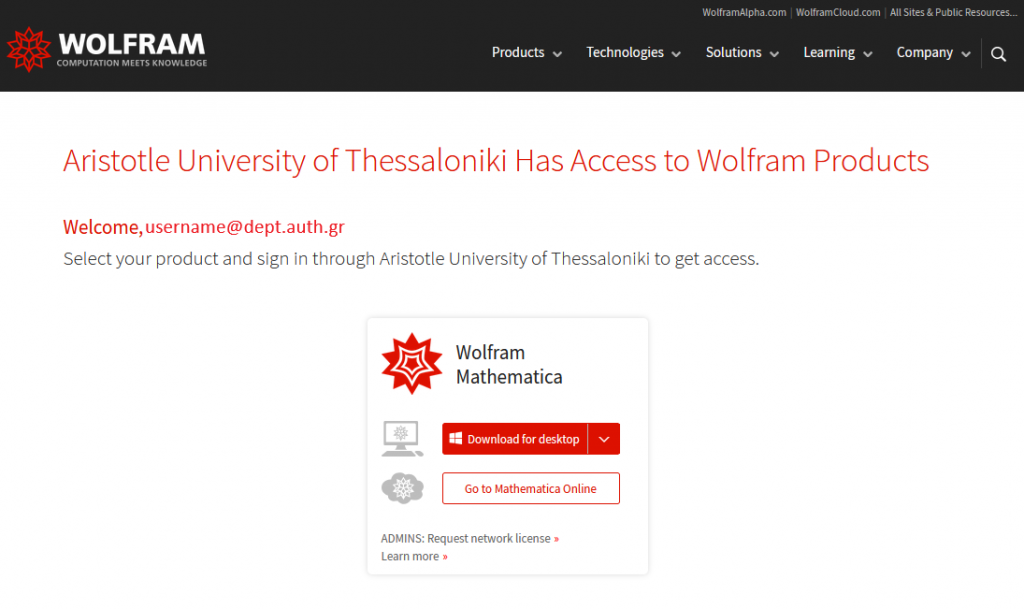
On the subsequent screen, select Download for desktop.
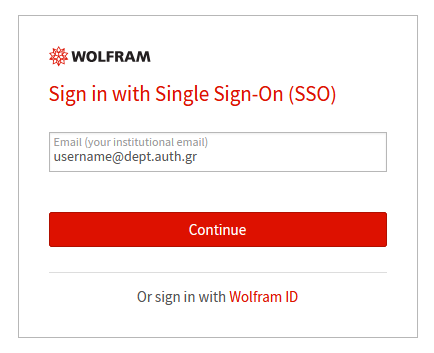
At the bottom of the window, select sign with Single Sign-On (SSO).

Enter your institutional email address, click Continue, and provide your institutional user account credentials to log in.
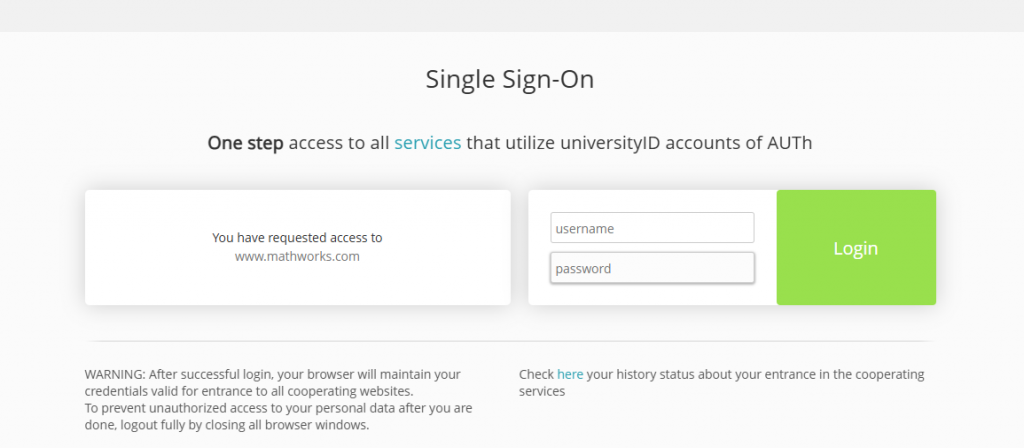
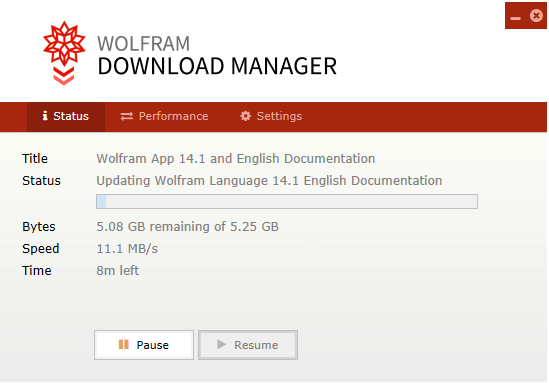
The download will start automatically.
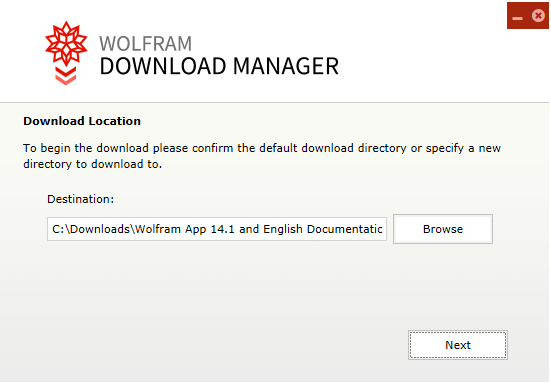
Select your preferred destination folder and click Next to start the file transfer.
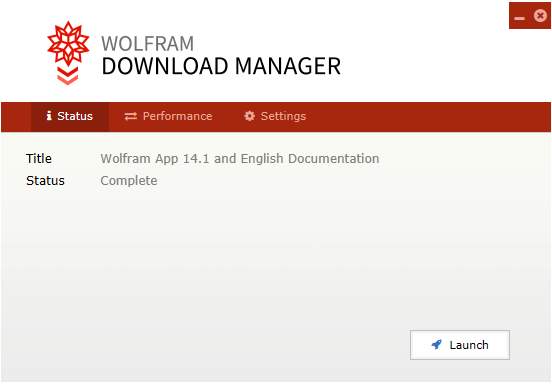
Once the download is complete, select Launch to begin the installation process.

Mathematica Installation #
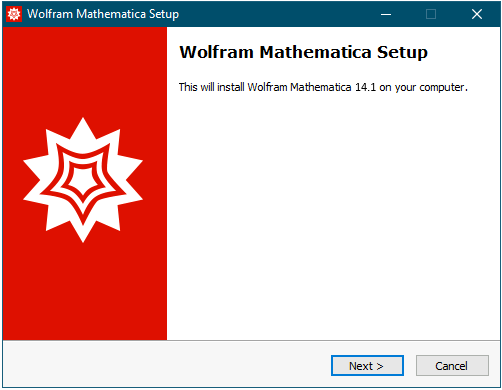
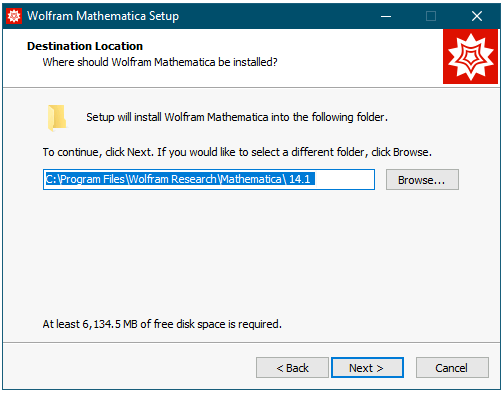
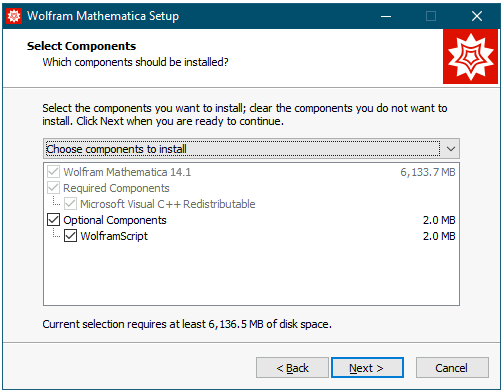
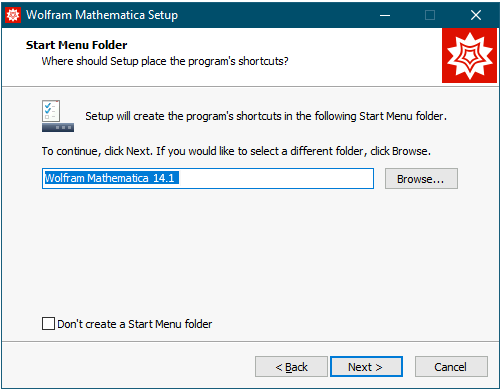
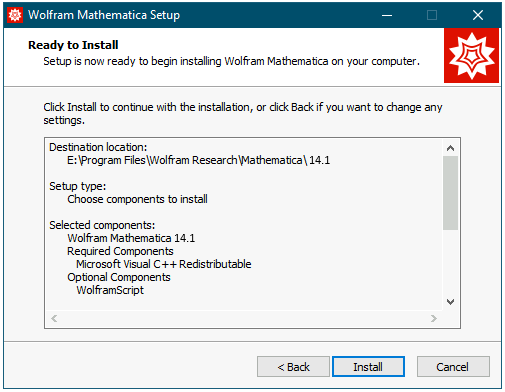
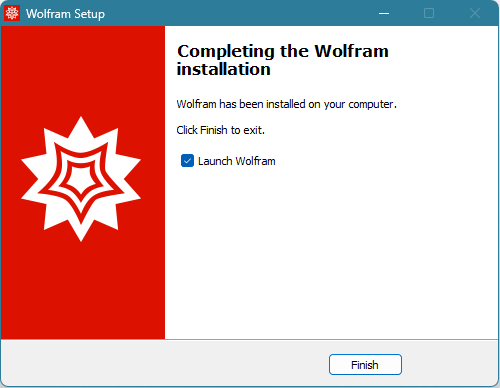
Follow the installation prompts by selecting your preferred destination folder and specifying whether you wish to include the Wolfram Extras in the installation.

Mathematica License Activation #
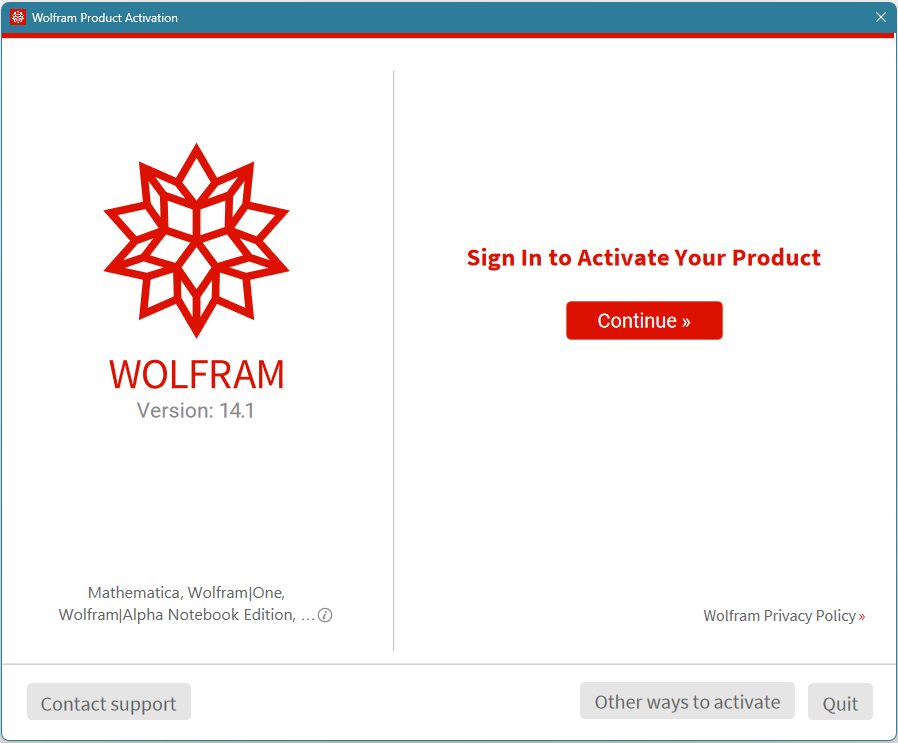
Upon launching the application for the first time, you will be prompted to activate the software. Select Activate with sign-in through a web browser.
In the window that appears, click Continue.
In the browser window that opens, navigate to the bottom of the page and select sign with Single Sign-On (SSO).
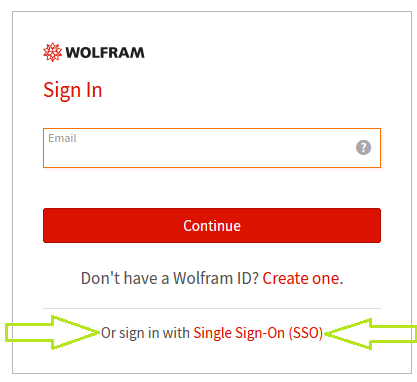
Enter your institutional email address, click Continue, and provide our institutional user account credentials to log in.
In the following window, select Activate.
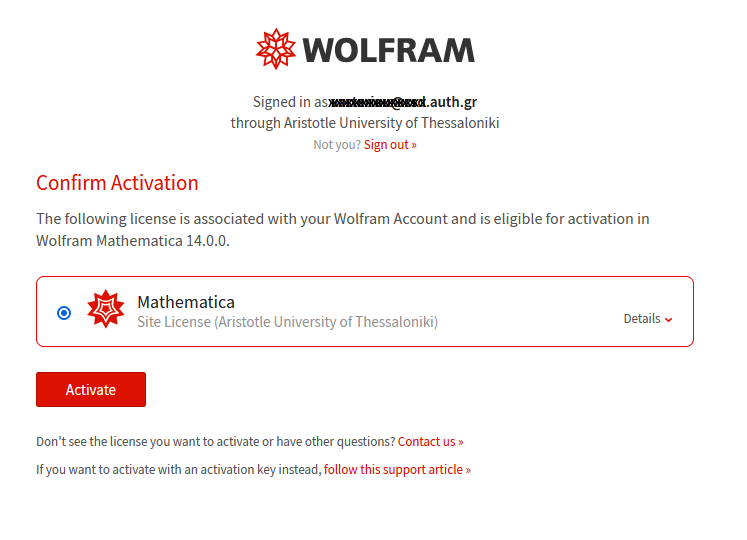
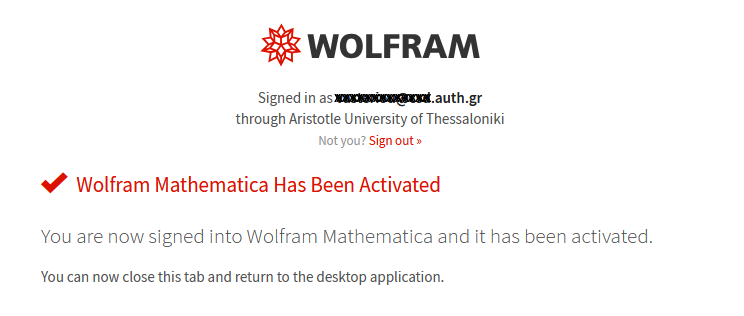
The activation process is now complete, and the software is ready for use.