


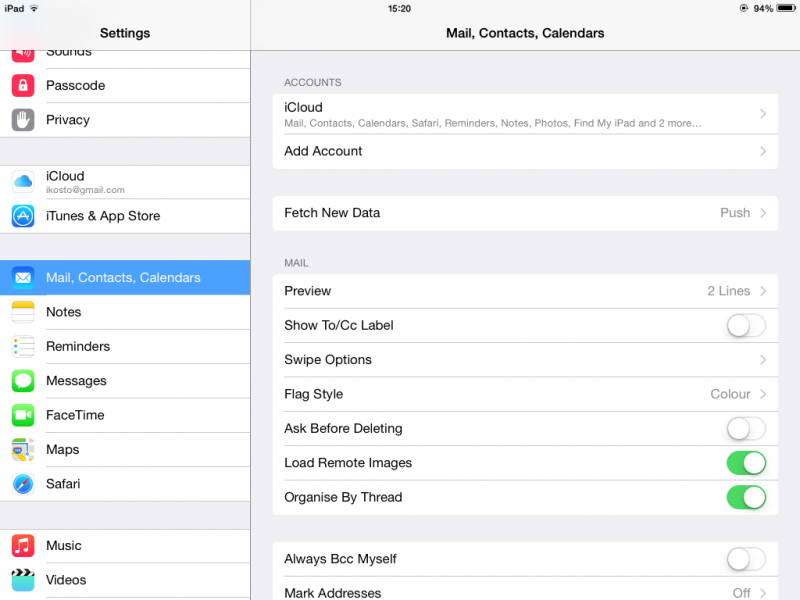
Settings #
Go to Settings → Mail, Contacts, Calendars.
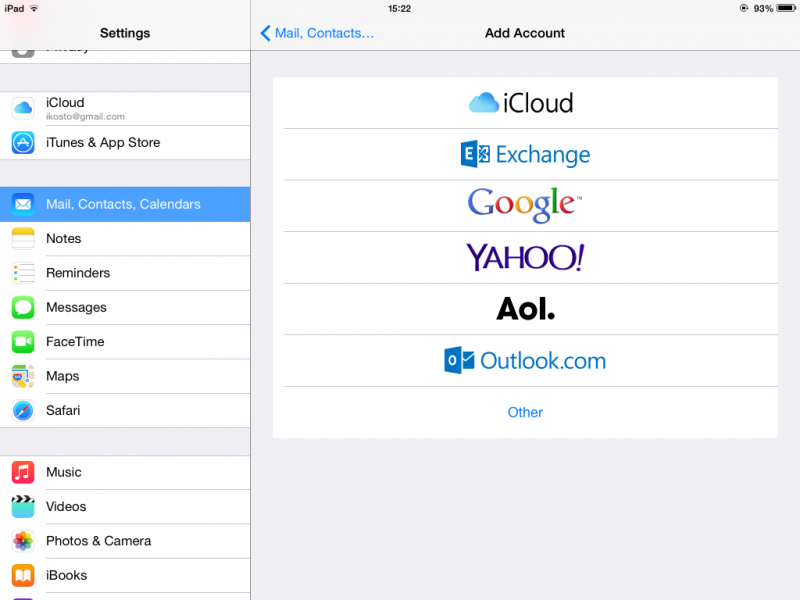
Add Another Account #
Follow the path Add Account → Other.
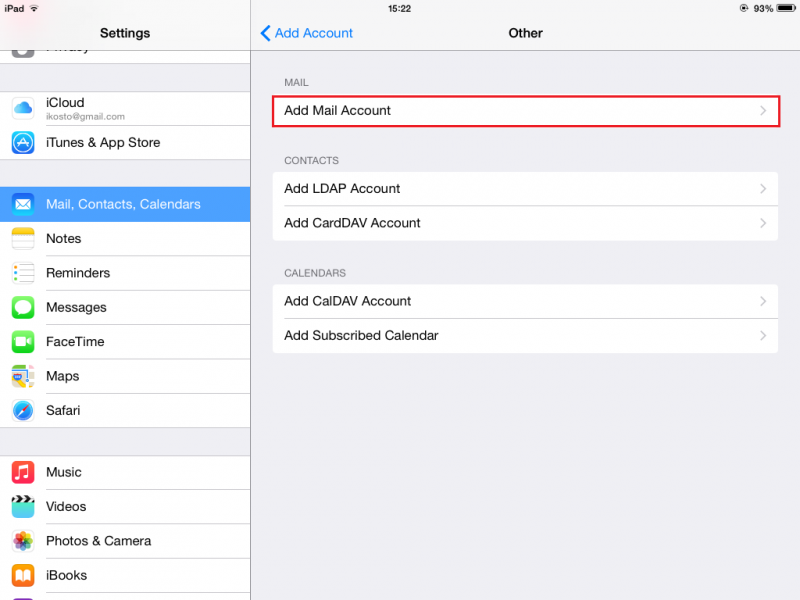
Add Mail Account #
Select Add Mail Account.
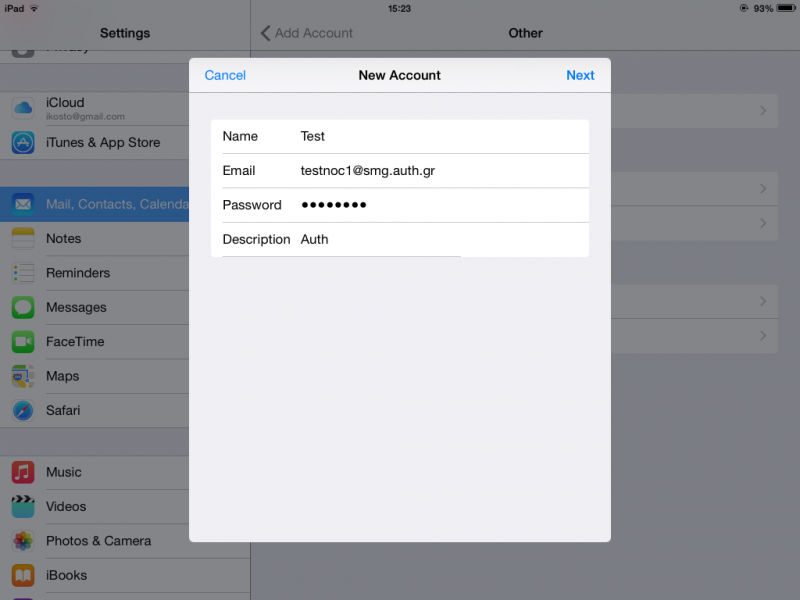
Enter New Account Details #
Fill in your details in the New Account fields and select Next.
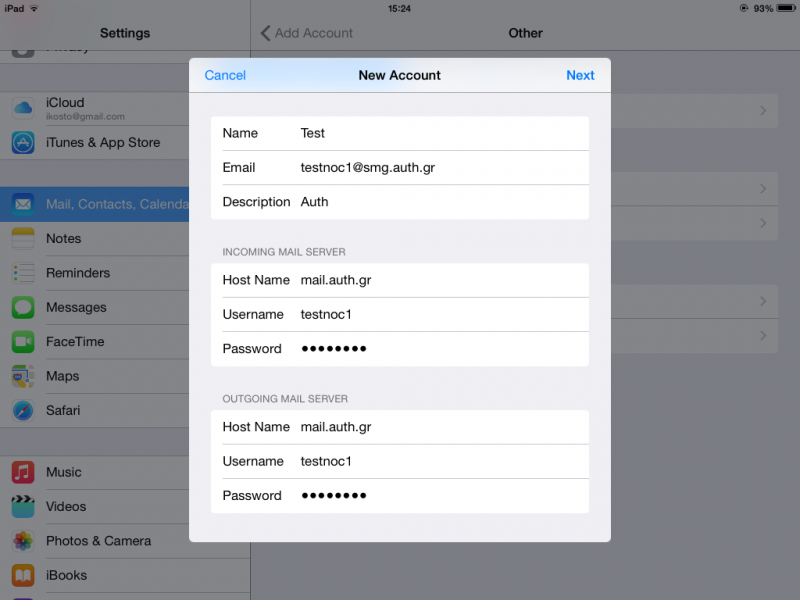
Incoming and Outgoing Mail Server #
Fill in the INCOMING MAIL SERVER and OUTGOING MAIL SERVER fields with Hostname: mail.auth.gr
Enter your institutional user account Username and password, then click Next.
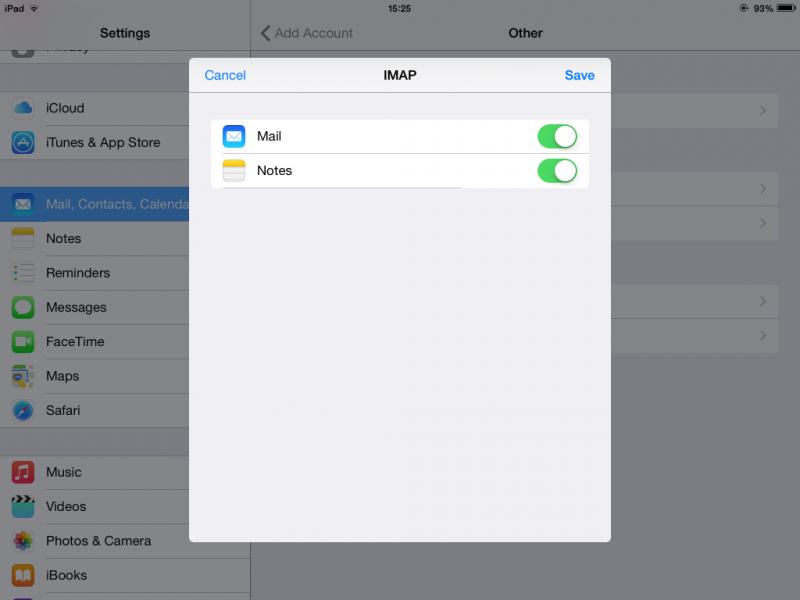
Select Email Type #
In the window, your mail type will appear as IMAP and select Save.
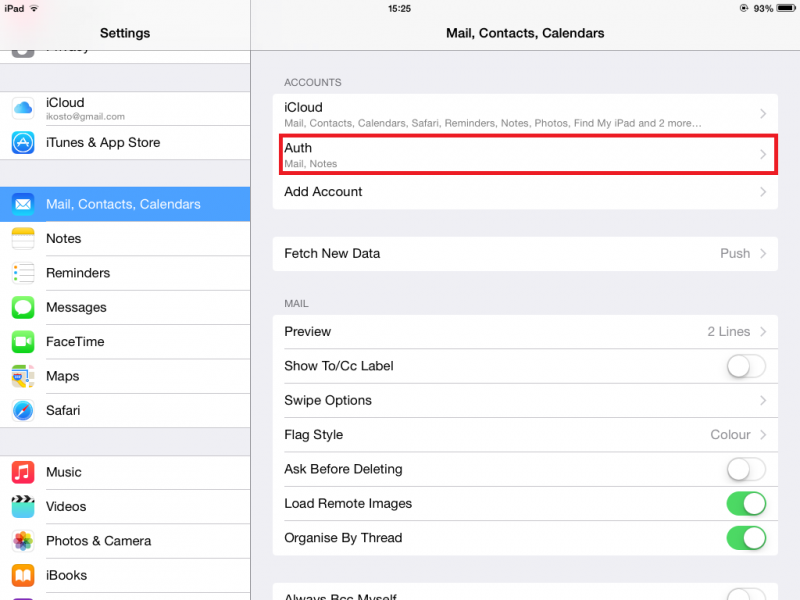
Select AUTh Account #
Select the Auth account you just created.
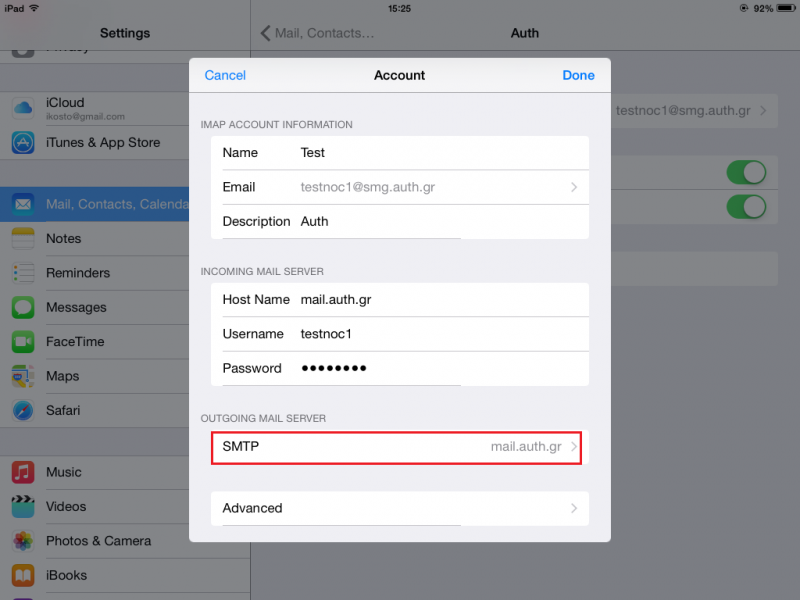
Outgoing Mail Server #
Select OUTGOING MAIL SERVER.
Outgoing Mail Server Settings #
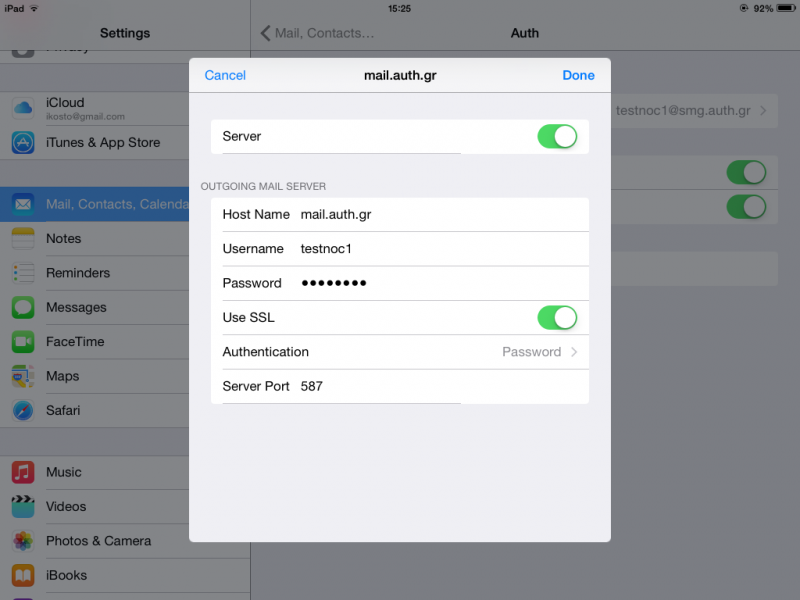
In the OUTGOING MAIL SERVER settings, enable Use SSL and we select Done.
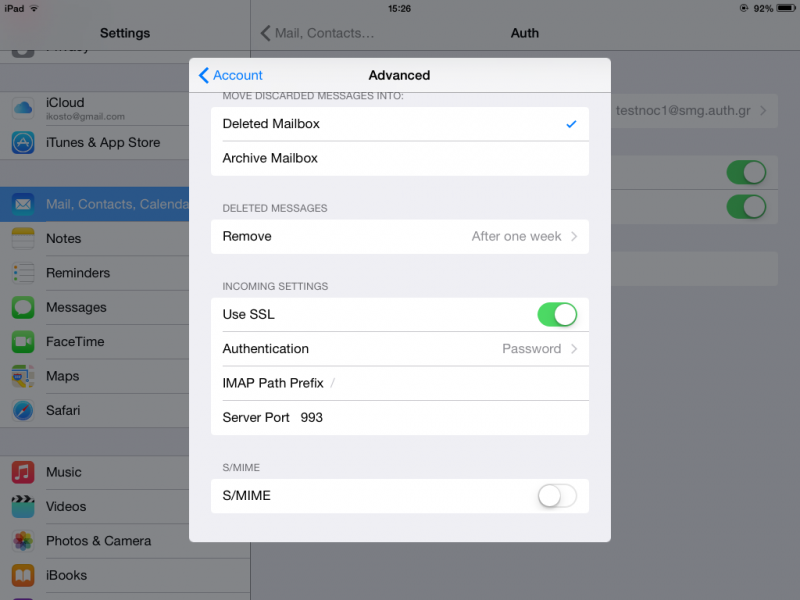
Advanced Account Settings #
In your account settings, select Advanced and, under Incoming Settings, enable Use SSL.