



Installation of the eduVPN application #
Download the eduVPN client suitable for the operating system of your PC from the following link: https://www.eduvpn.org/client-apps. The following instructions apply to all desktop operating systems (Windows, macOS, Linux).

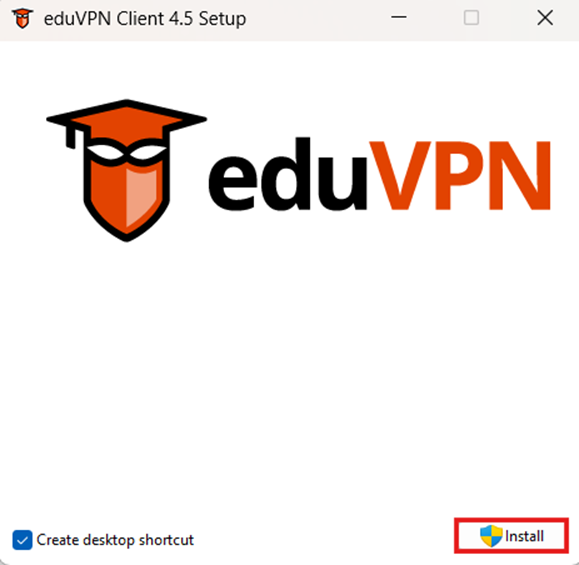
Run the installer file and click Install.
Institution selection #
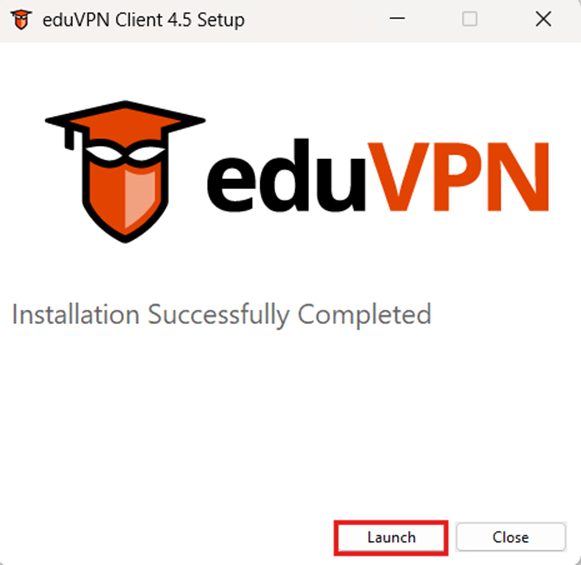
Once the installation is complete, click Launch to open the application.
In the search field, type Aristotle University of Thessaloniki and select it.

Connect to VPN #
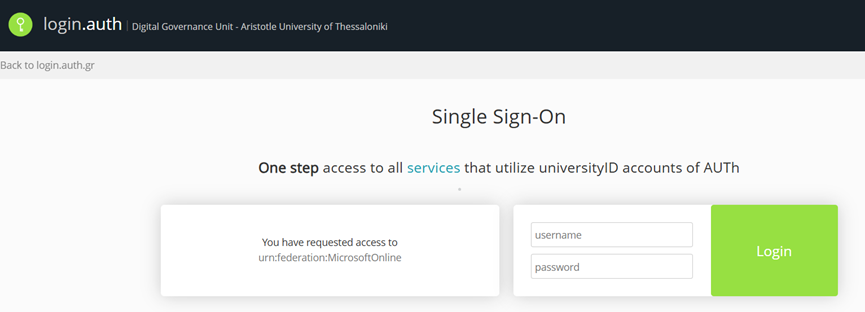
You will be automatically redirected to the familiar institutional login page. Log in using your Institutional user account credentials.
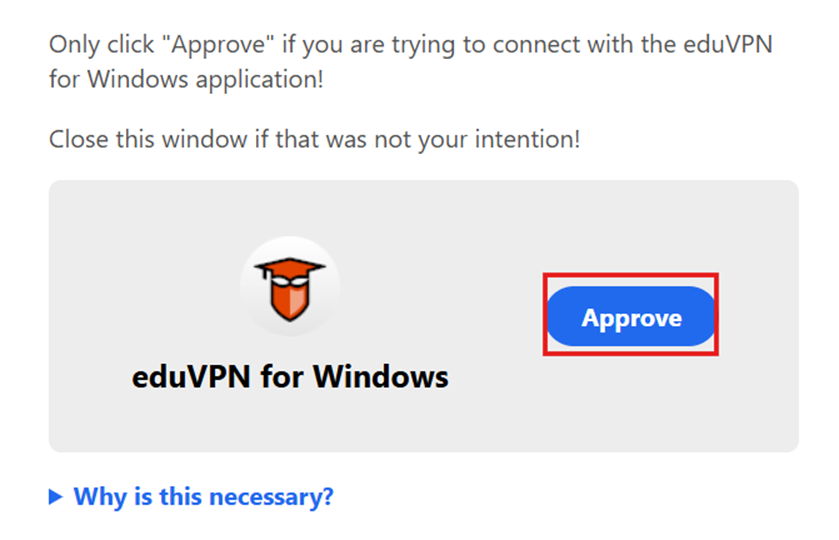
Tap Approve into the browser window.
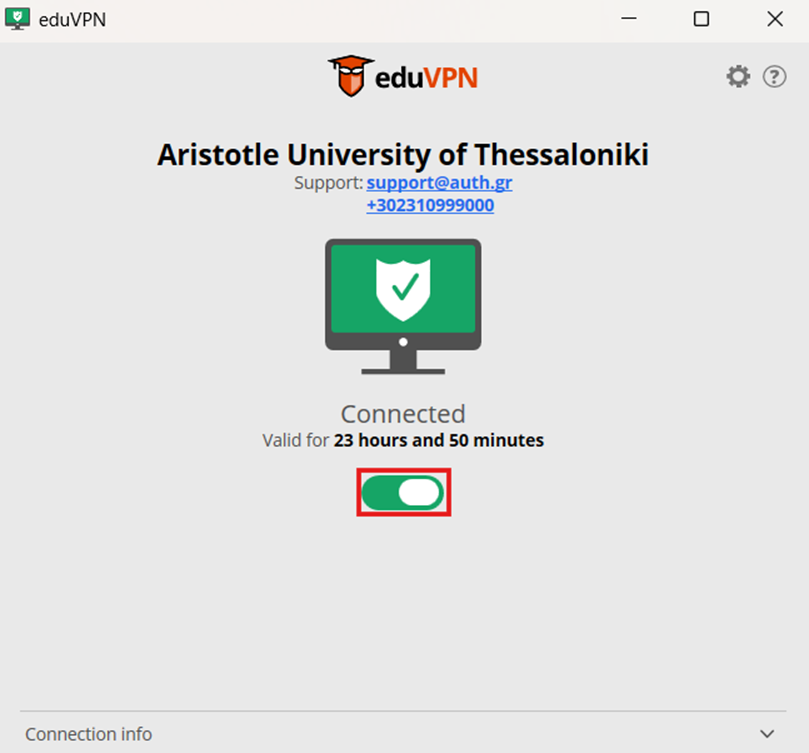
Go back to the eduVPN application and toggle the connection switch to the ON position to establish the VPN connection.
Check VPN connection #
You can verify that the VPN connection is active by checking the eduVPN icon in the system tray. The icon should turn green.