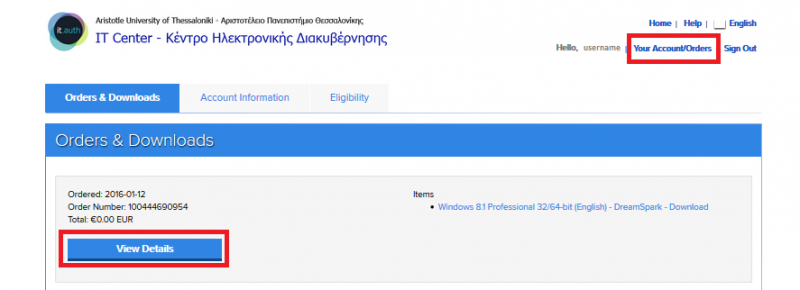



Select Sign In #
Navigate to the Microsoft Azure Dev Tools for Teaching website and select the Sign In option.
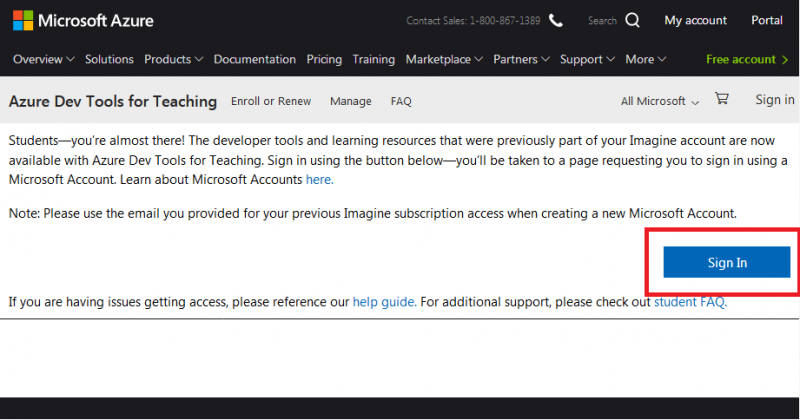
Sign in to our Account #
Log in using your Microsoft Office365 Education credentials: username@office365.auth.gr.
If you have not yet activated your account, please refer to the instructions provided on the service’s official website.
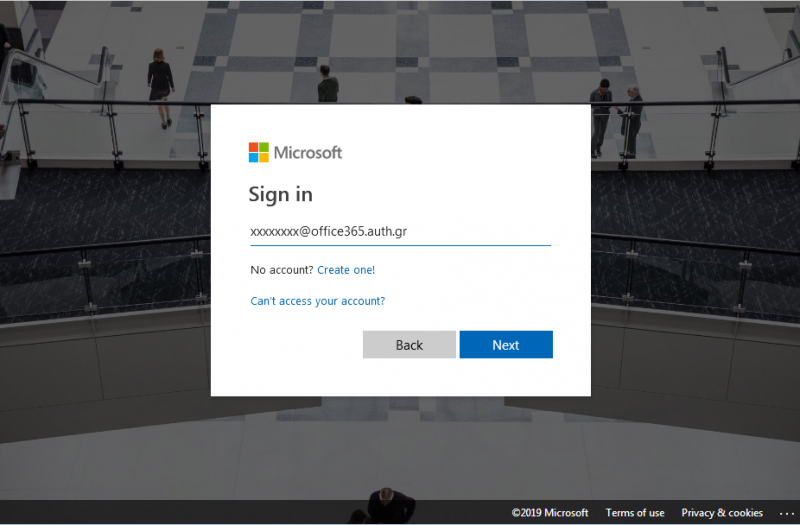
Identity Verification by Phone #
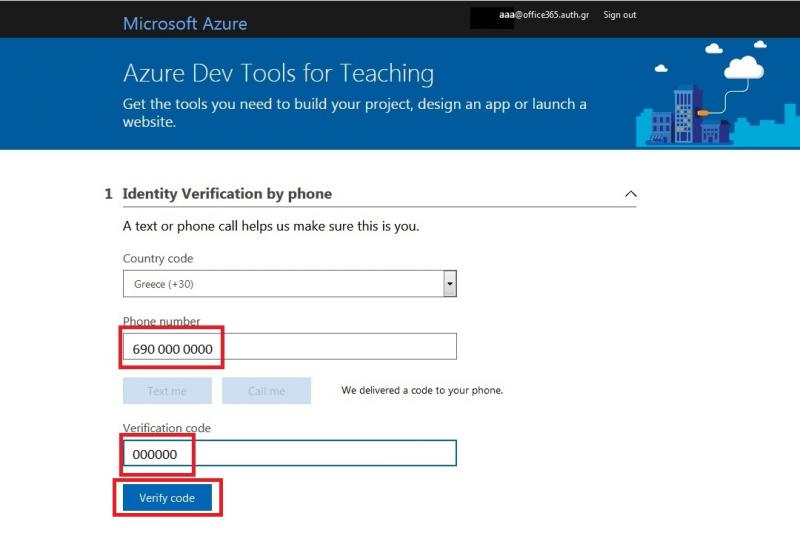
Select your country, enter your mobile phone number, and choose your preferred verification method (text message or phone call). Once you receive the code, enter it in the designated field.
Software Download #
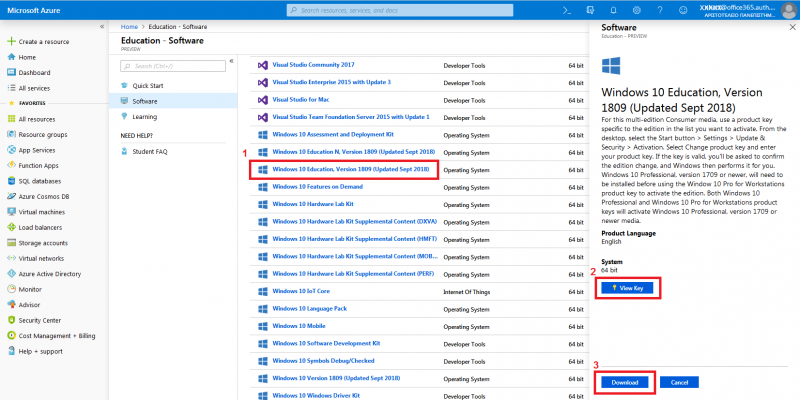
To proceed with a software order, select Software from the sidebar menu on the left.
From the resulting list, select the software of your choice. On the right-hand panel, select View Key to retrieve your installation product key and Download to obtain the software installer.
Technical instructions regarding the management of ISO files can be found here.
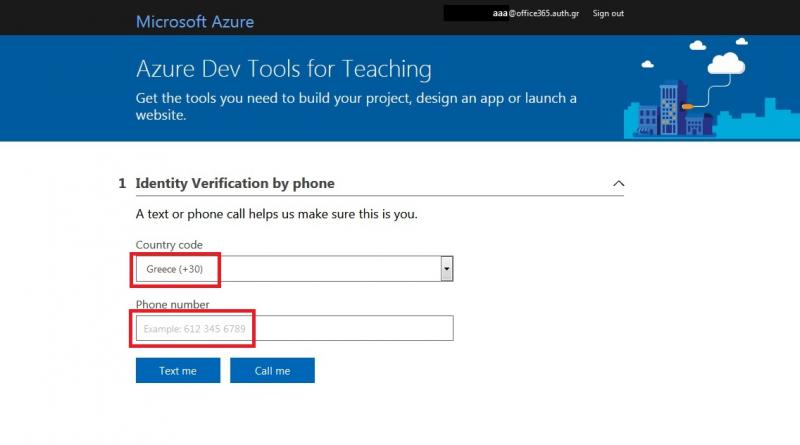
View Order History #
You can access software and Product Keys from previous Microsoft Imagine orders by logging into the service’s website with your institutional user account credentials. Once you have logged in, select Your Account/Orders at the top of the page.