


Access the Management Interface #
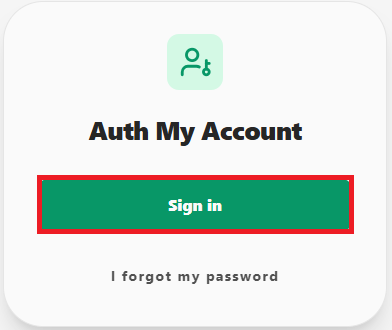
Log in to the management interface at myaccount.auth.gr using your username and institutional user account password. If you have not already done so in the past, you will need to follow the instructions for setting up two-factor authentication (2FA) (instructions).

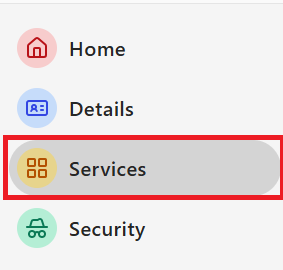
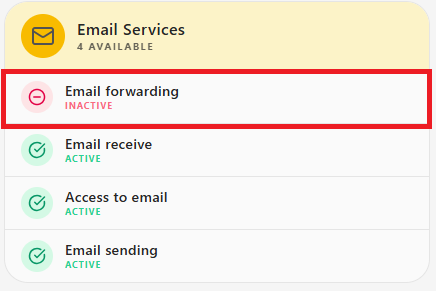
From the menu on the left, select Services, and under the Email subsection, choose Email Forwarding.
Activate Forwarding #
On the page that appears, enter the email address to which you want your messages forwarded and click Send code.
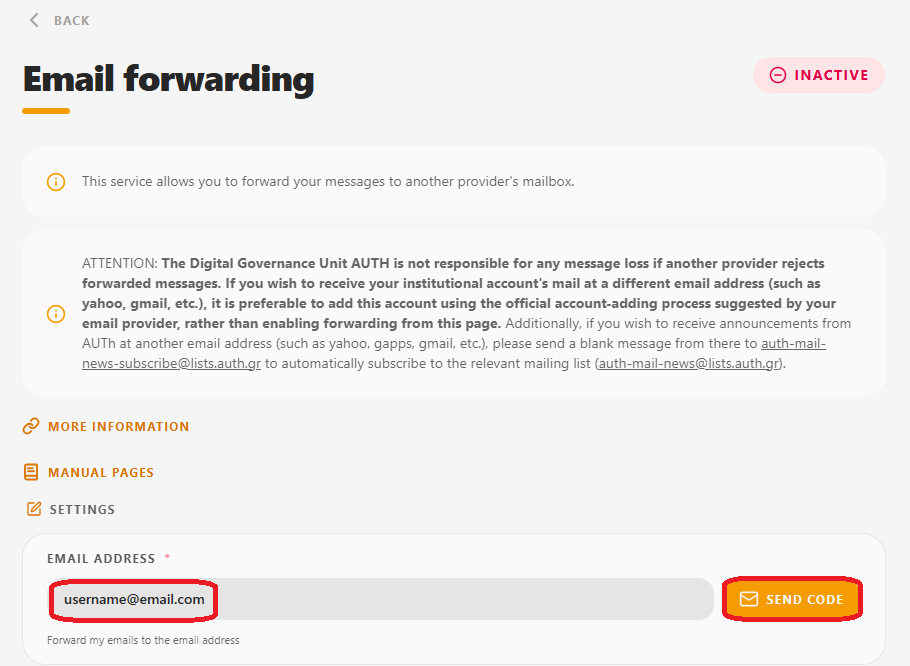
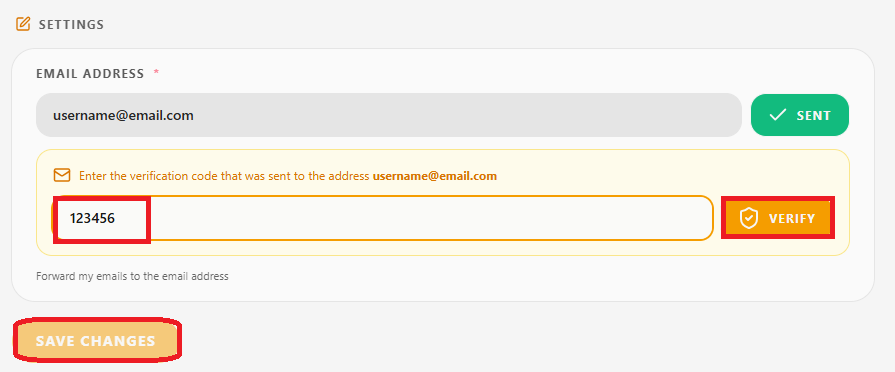
Log in to the email address you want to use for forwarding, where you will have received a confirmation message with a 6-digit code.
Paste the 6-digit code into the field displayed below the forwarding address, then select Verify and Save Changes.
Deactivate Forwarding #
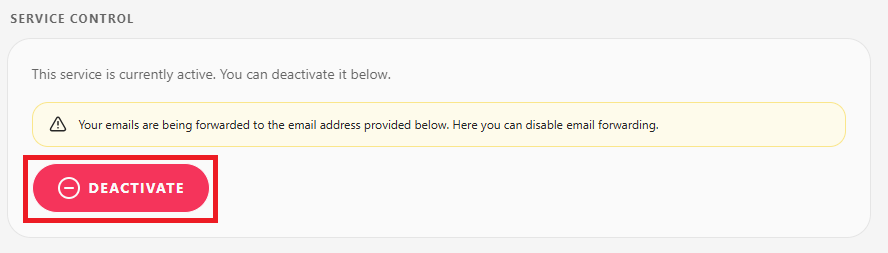
In the Service Management section, select Deactivate.