


SPSS Statistics is now exclusively distributed through the PS IMAGO PRO software suite.
Before proceeding with the installation, you must obtain the software license key:
– If you have submitted an application in the past, go to the My Software page to view the new key. Click on SPSS Windows (PS IMAGO PRO) or on the + icon on the right to display the key.
– If you have not submitted an application in the past, go to Software License Application.
A license key is available only for the new version, PS IMAGO PRO 11. Therefore, the previous version, PS IMAGO PRO 10, must be uninstalled before installing the new version.
Download PS IMAGO PRO 11 (SPSS 31)
Installation Instructions #
1. To begin the installation process, right-click on the downloaded file and select Run as administrator. If asked uninstall the previous version
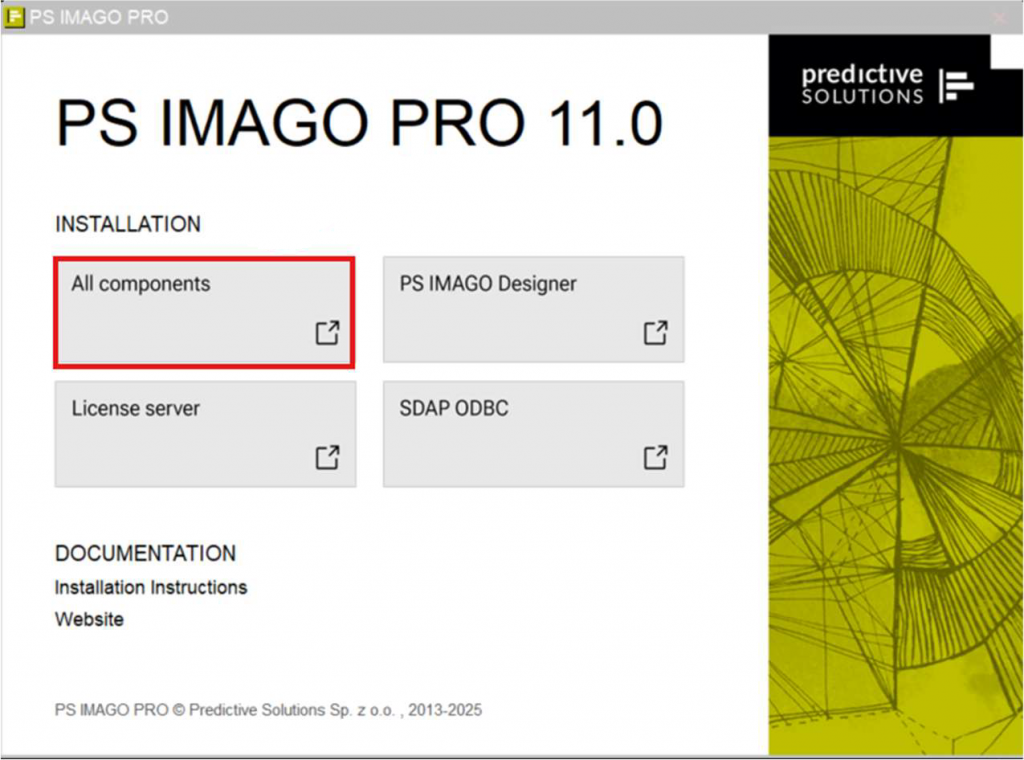
2. In the initial installation window, select All components and proceed by clicking Next> in the subsequent window.
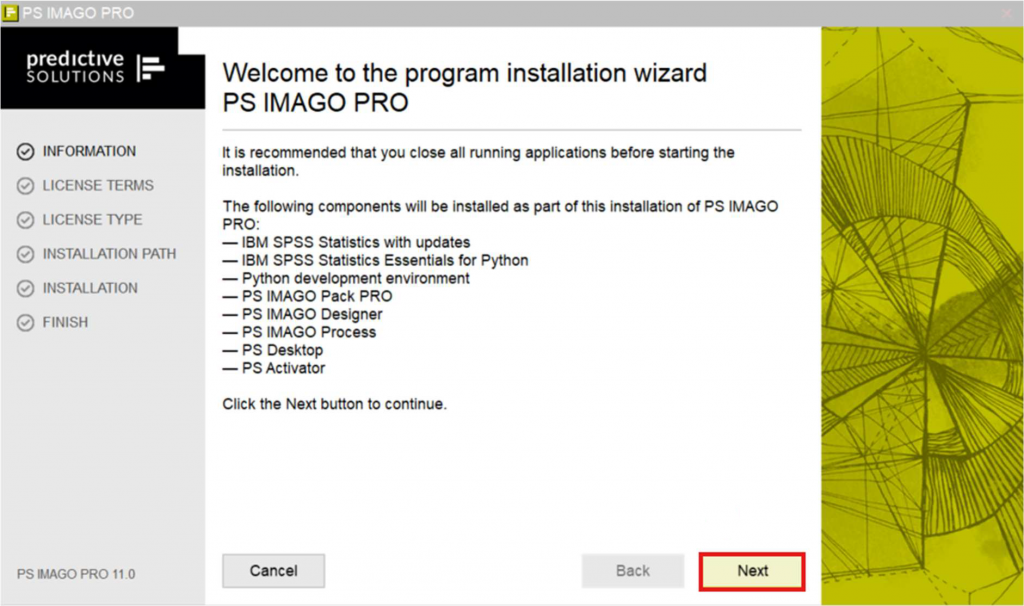
3. Review the terms of use, Accept them and Next to continue.
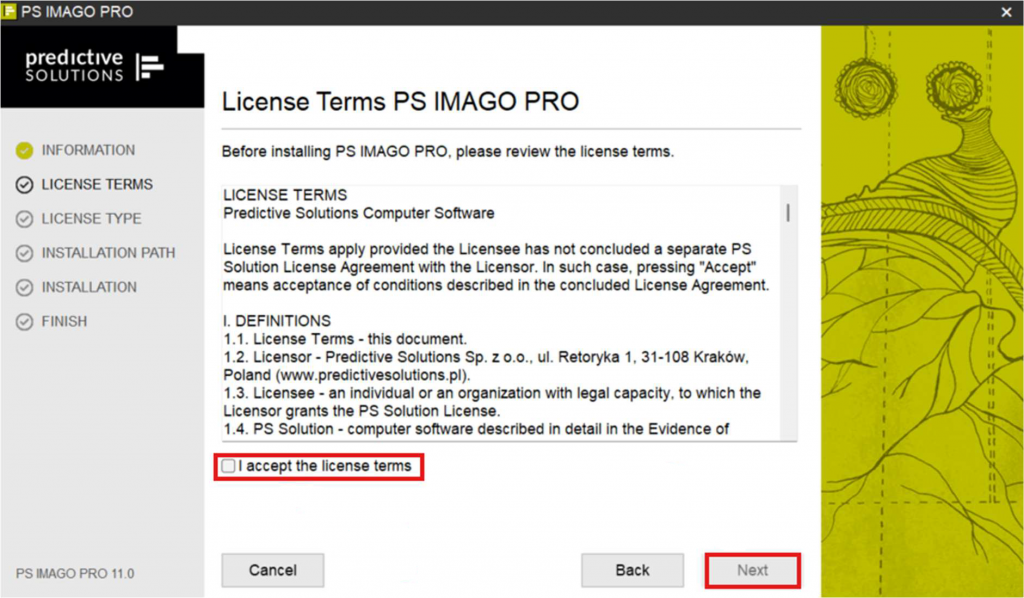
4. Select Single-User Local License and Next

5. Choose your preferred installation directory and click Install.
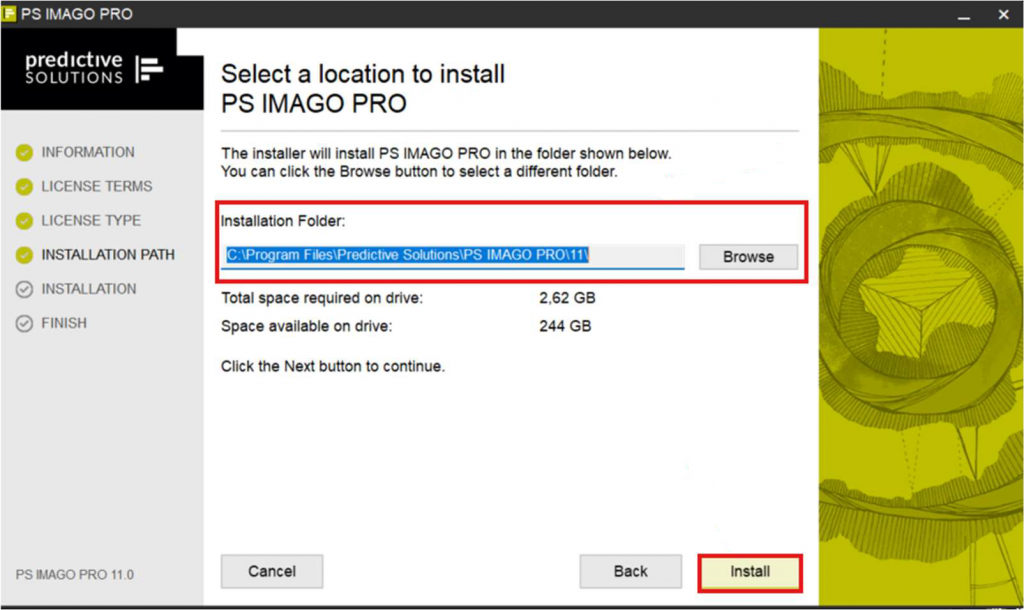
6. To finalize the installation process, a system restart is required. Click on Next, then select Restart Now and Finish
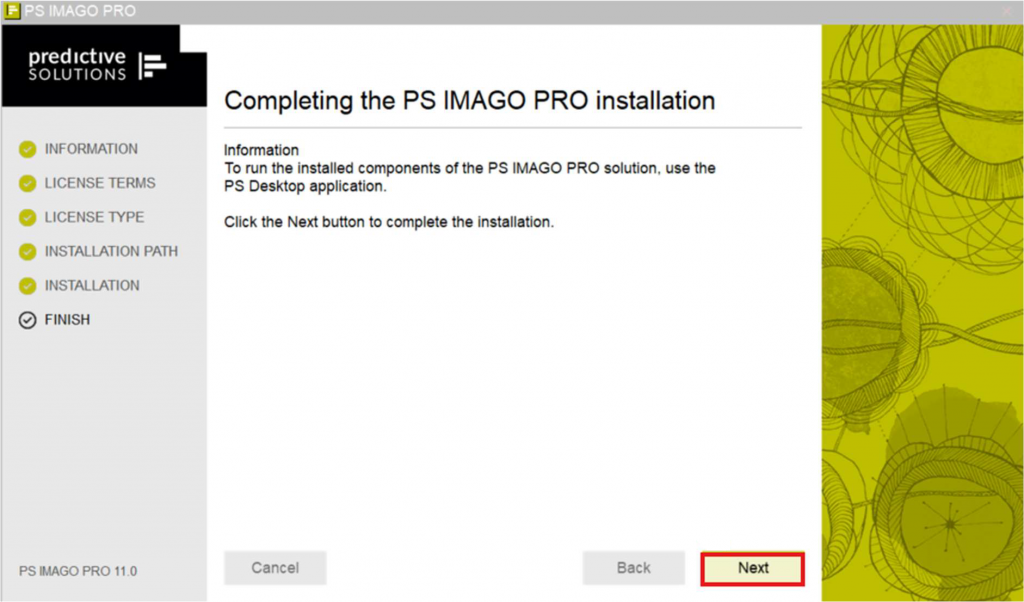

License Activation #
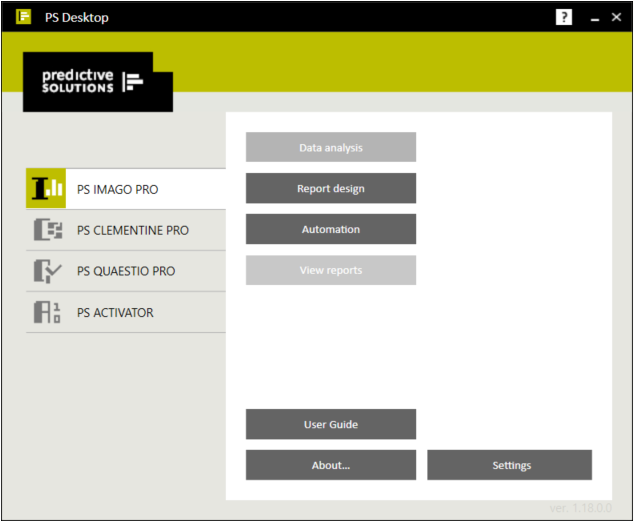
1. After the system restart, navigate to the Windows Start menu, locate the Predictive Solutions folder, launch PS Desktop, select PS ACTIVATOR, and click Activate License.
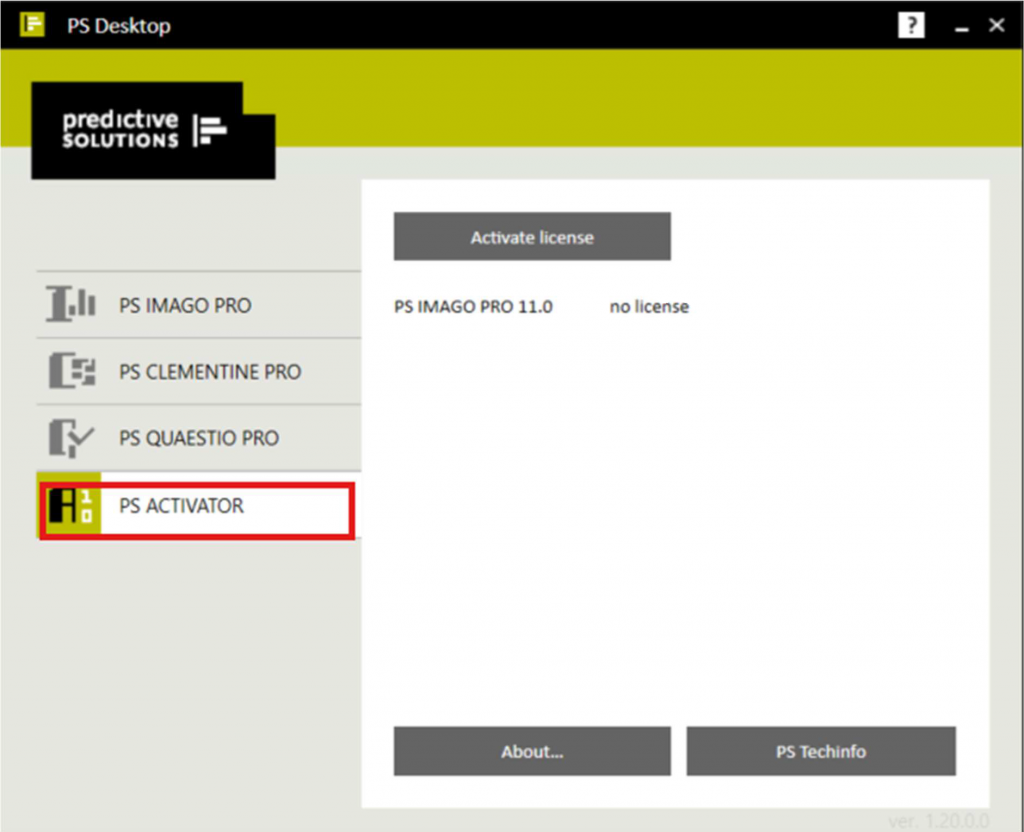
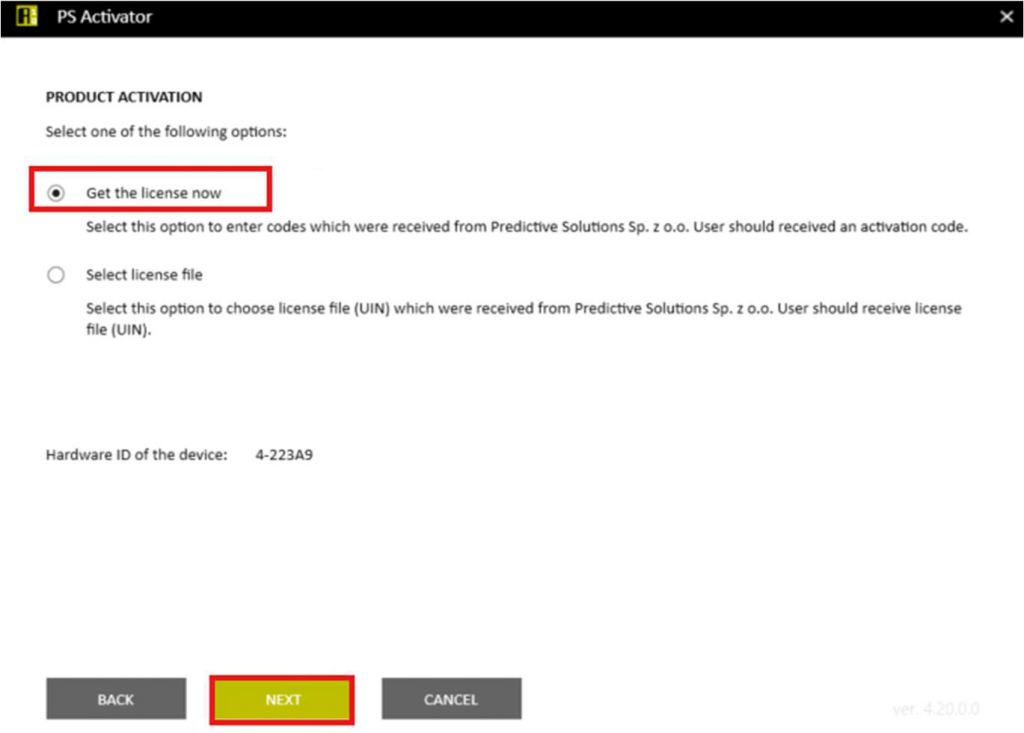
2. Click Next, and in the following window, select Get the license now and click Next again.

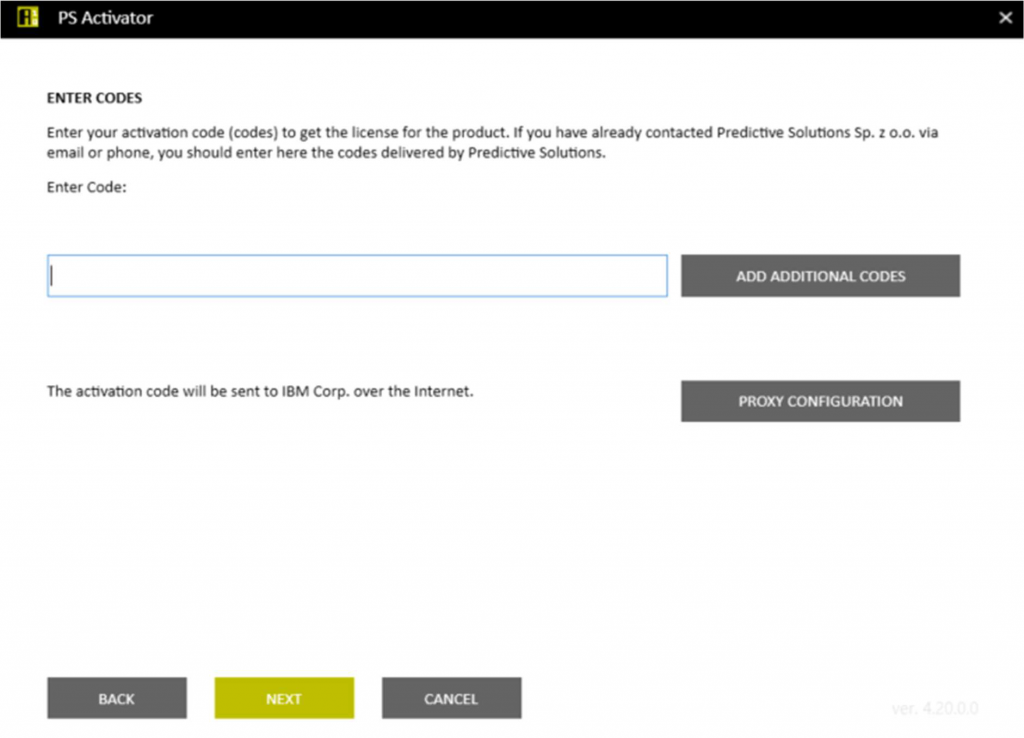
3. Enter the software license key you received upon your application and click Next.
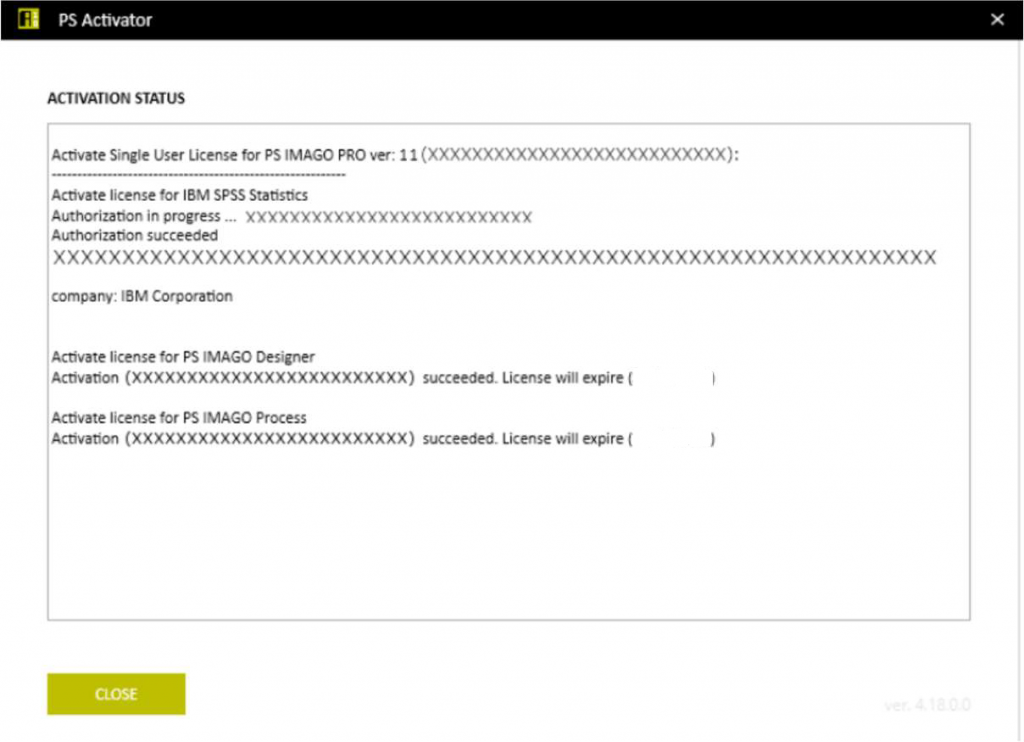
4. Once the successful activation message appears, click Close.
Software Usage #
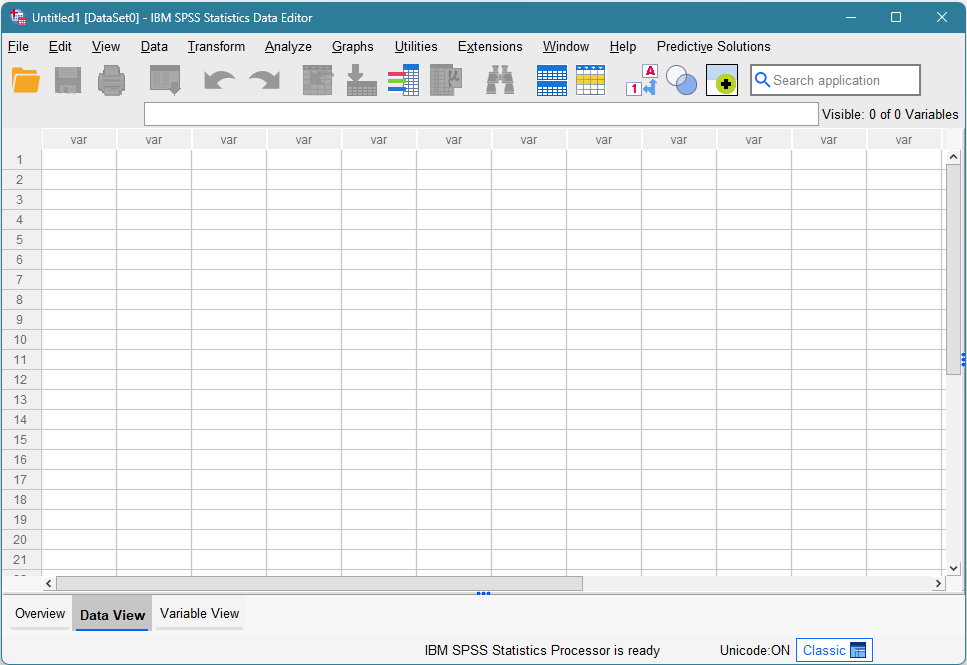
To launch the application, open PS Desktop, select PS IMAGO PRO from the left-hand sidebar, and click Data Analysis to enter the SPSS Statistics environment.