



Warning: A smartphone with access to Google Play Store / App Store is necessary in order to complete the process. Recommended One-Time Password (OTP) generating apps are:
Microsoft Authenticator (Google Play / Apple App Store)
Google Authenticator (Google Play / Apple App Store)
The following steps describe the procedure for configuring two-factor authentication (2FA) within the MyAccount portal:
Setup via QR Code (Requires a Computer) #
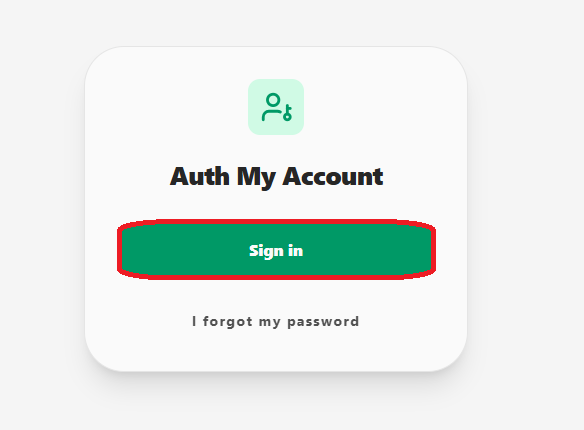
1. On our computer, we access the page myaccount.auth.gr and press Sign in.
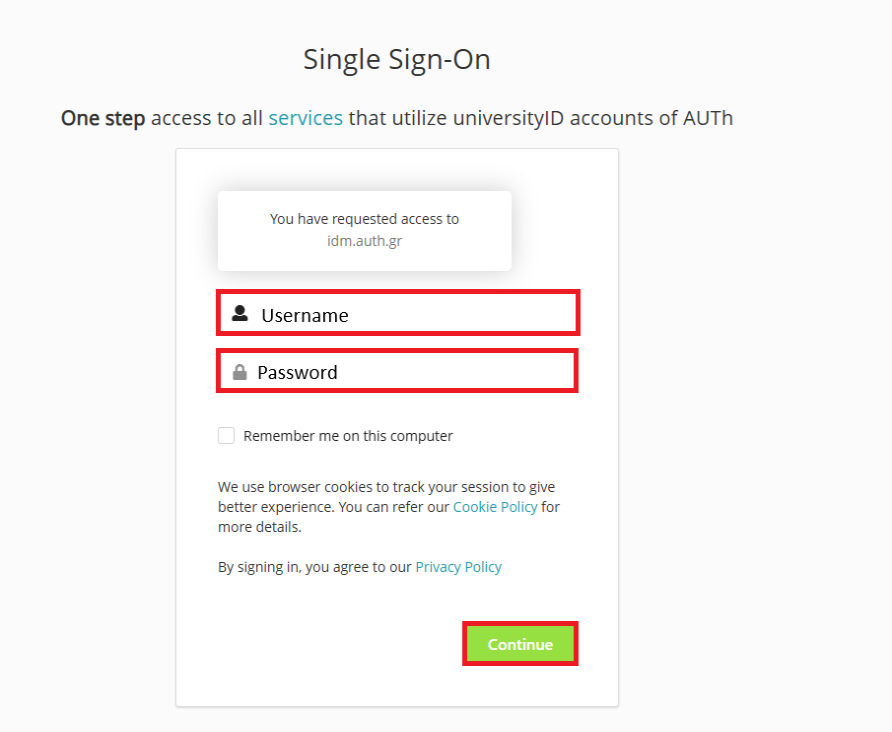
2. If prompted, we input our institutional Username and Password in the corresponding fields and press Continue
3. Press Show QR code
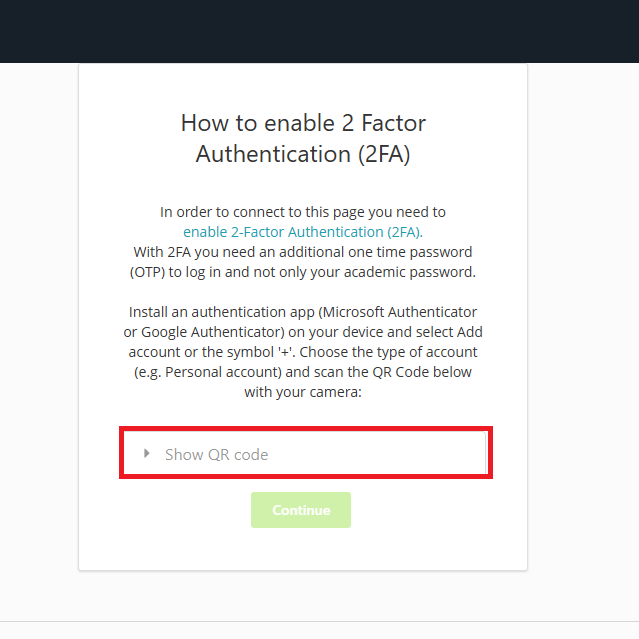
4. In the window that opens up, we can view the QR code that we need to scan using one of the above mentioned authenticator apps. Detailed instructions about adding a new account using a QR code can be found here.
In case we can’t scan the QR code (e.g. we are already using our smart device), we may proceed with the instructions here.

5. Once we have added the new account into our authenticator app, we press Continue.

6. We fill in our active OTP from the app into the blank field and press Continue
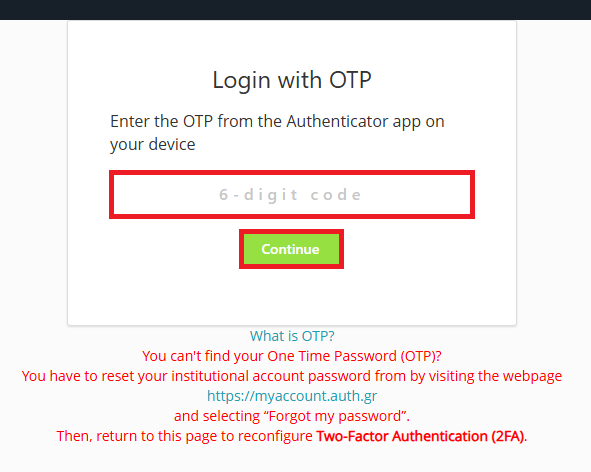
We have successfully set up multiple factor authentication and have connected to the portal of myaccount.
Via Hash Key #
In case we haven’t access to a computer, we need to utilize the unique identification “key” given to us. To do this, we need to follow these steps:
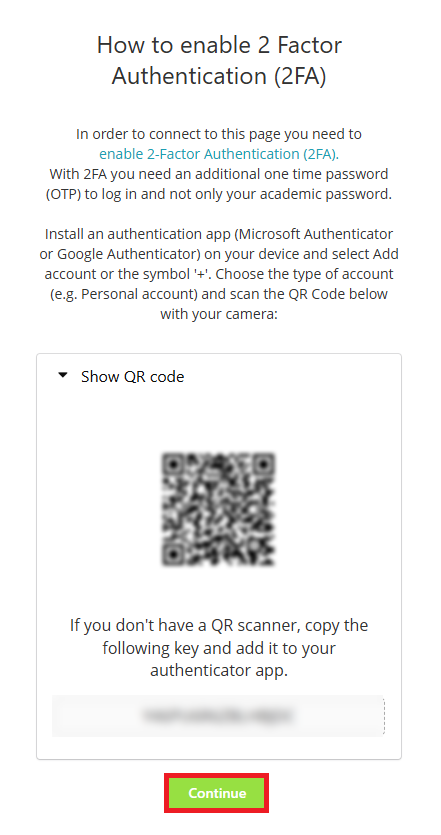
1. Instead of using the QR code, we proceed with the “hash key” displayed under the image and click on this in order to copy the “key”.

3. We move over to the app we installed earlier in order to complete the process.
Follow the corresponding instructions below for the app you have installed.
Microsoft Authenticator #
1. We launch the Microsoft Authenticator app installed on our device and press add account
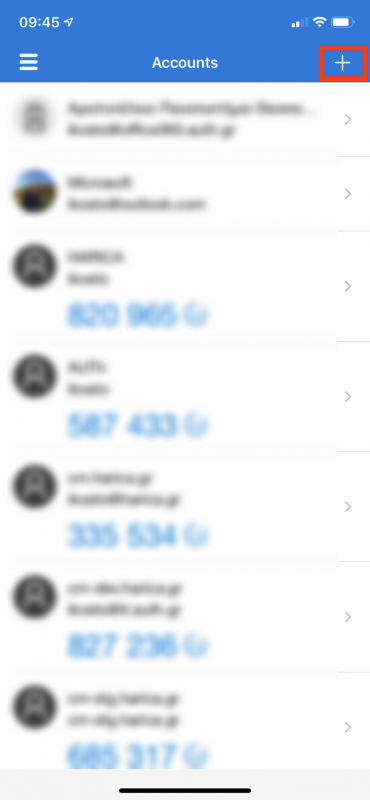
2. Press Other
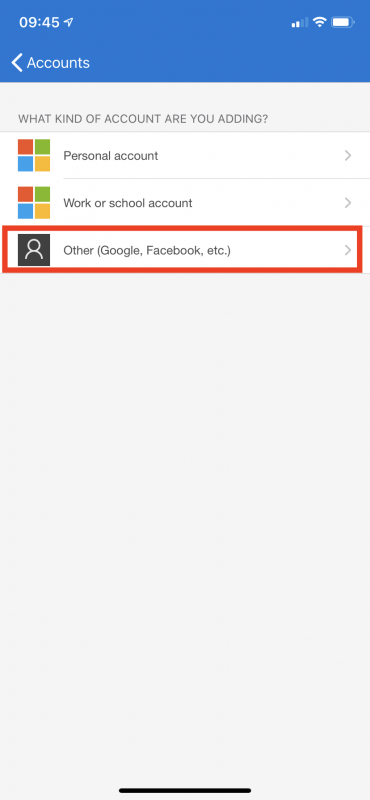
3. When our device’s camera is launched, we press Enter code manually
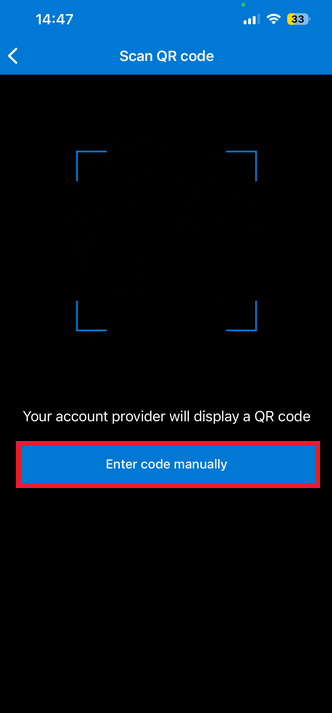
4. Press Other
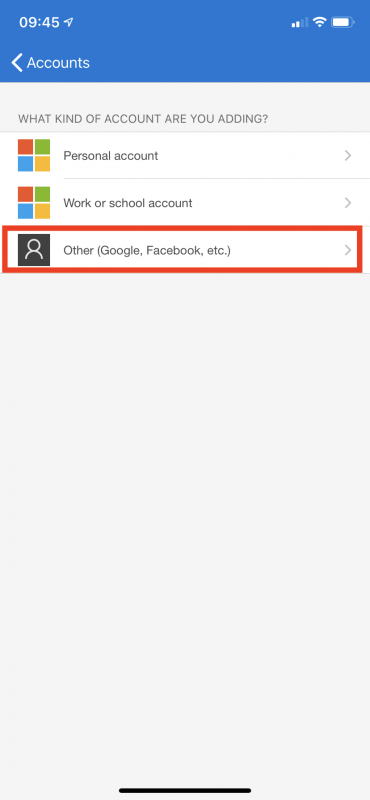
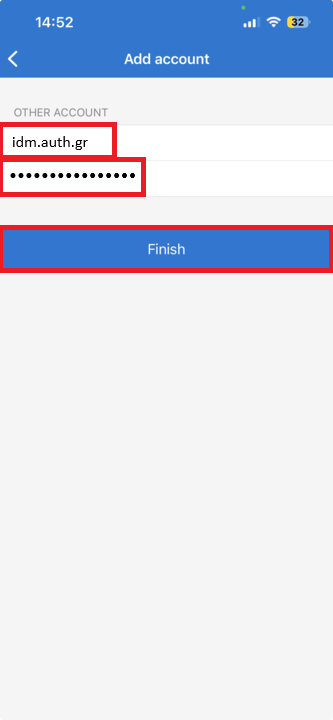
5. Input idm.auth.gr in the Account name field and your “key” in the Secret key field, then press Finish
6. Having set up the app, we return to myaccount and press Continue
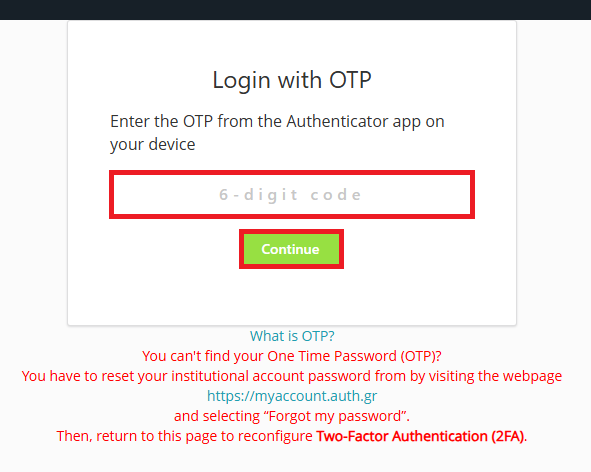
7. Input our app’s active OTP into the blank field and press Continue
We have successfully set up multiple factor authentication and have connected to the environment of myaccount.
Google Authenticator #
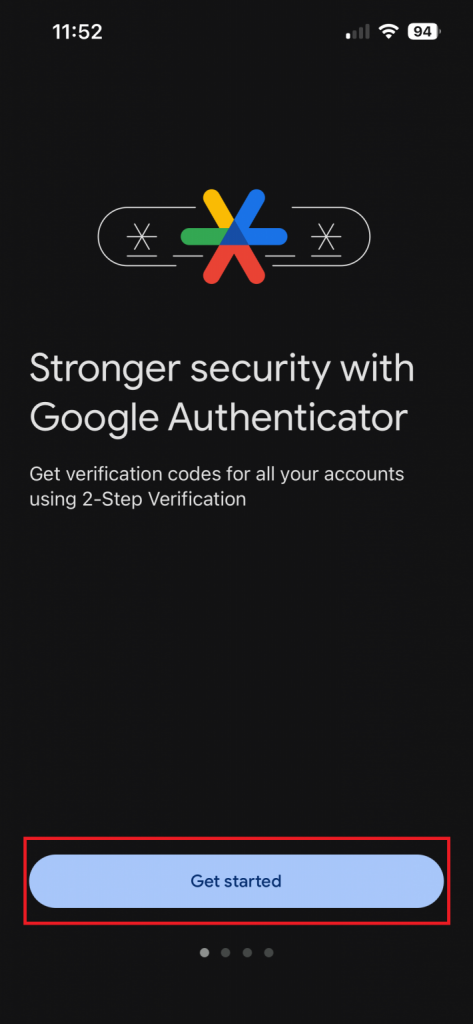
1. We launch the Google Authenticator app installed on our device and press Get started
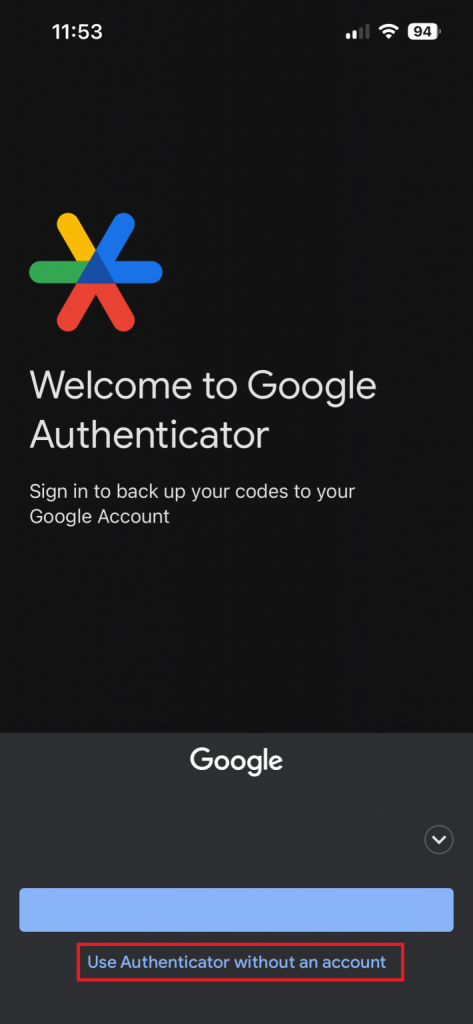
2. Press Use Authenticator without an account
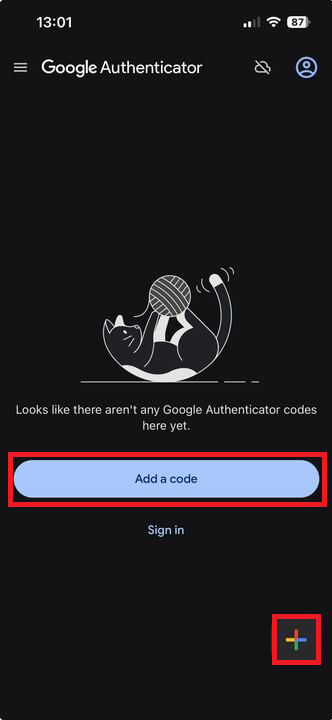
3. Press Add a code or the + symbol
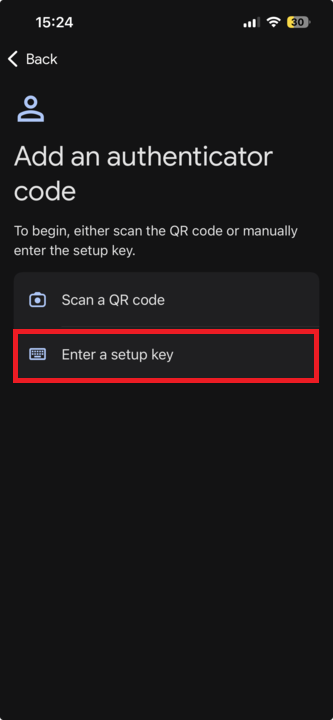
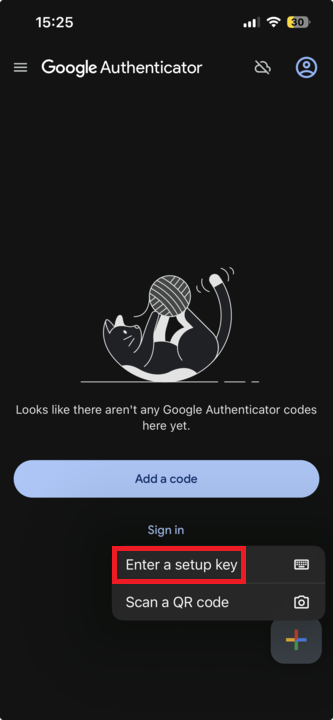
4. Press Enter a setup key
5. Input idm.auth.gr in the Account name field and our “key” in the Your key field, then press Add
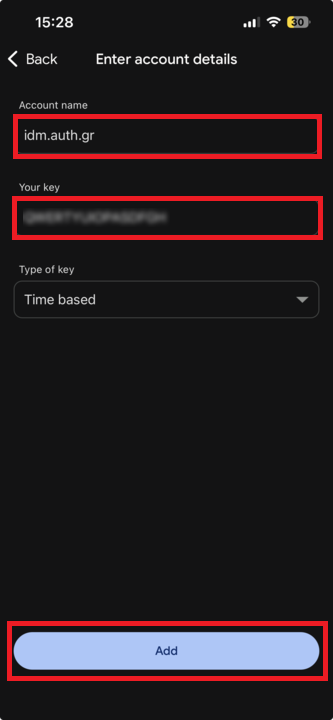
6. Having set up the app, we return to myaccount and press Continue
7. Input our app’s active OTP into the blank field and press Continue
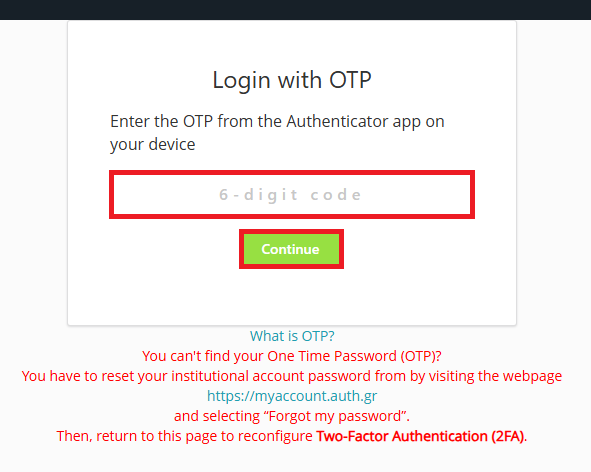
We have successfully set up multiple factor authentication and have connected to the environment of myaccount.
One-Time Password (OTP) Reset #
In the event that you have lost or are unable to access your One-Time Password (OTP)—for example, due to a change of mobile device—you will need to reset your institutional account password. To do so, please visit https://myaccount.auth.gr and select “Forgot my password“.
Subsequently, you may open again the webpage https://myaccount.auth.gr to reconfigure your Two-Factor Authentication (2FA) after logging in.